
How to Automate Visual Tests in 2026
Automating Visual Tests in 2026 | How it Works
Visual design drives 94% of a user’s first impression, making it one of the most crucial components for building reputation for your brand. However, if you are still depending solely on manual visual testing to catch visual regressions in the big 2026, you are slowly getting behind.
Automated visual testing uses baseline screenshots to flag changes automatically. This reduces your verification time from hours to minutes, allowing you to focus only on what actually changed. It provides high accuracy and ensures the interface remains consistent without delaying modern development workflows.
In this article, I’m covering automated visual testing in detail, going over its fundamental benefits, best practices, and few of the best tools you can choose for 2026.
What is Visual Testing?
Visual testing verifies that an application’s user interface renders exactly as intended after an update. It focuses on how pages, components, and UI states appear on screen, not on whether an action or flow completes successfully. The purpose is to catch visual defects that affect clarity, consistency, and usability.
The visual testing process starts by capturing the rendered UI and approving it as a reference baseline. Each test run then generates new screenshots and compares them against this baseline to detect visual differences. These differences often result from CSS updates, layout shifts, browser rendering behavior, or changes to shared UI components.
It Only Takes 0.5 Seconds To Lose a User
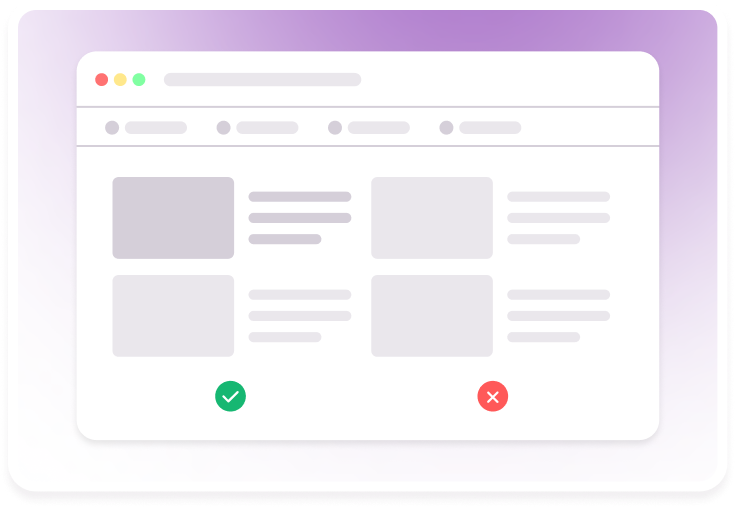
Unlike unit or functional tests that validate logic and data flow, visual testing validates visual presentation. A functional test passes when an API returns the correct response, but a visual test fails if that response renders with broken alignment, unreadable text, or hidden content.
Benefits of Automated Visual Testing
Automated visual testing addresses UI risks that functional automation and manual checks can’t reliably catch.
Here are the benefits of automated visual testing:
- Faster Feedback Without Review Bottlenecks: Visual checks run automatically as part of the build, removing the need for time-consuming page-by-page reviews and keeping releases moving.
- Objective, Repeatable Visual Validation: Every change is evaluated against the same visual baseline, ensuring consistent results and exposing subtle UI shifts that manual inspection often overlooks.
- Scalable Cross-Environment Confidence: Visual behavior is validated across browsers, devices, and screen sizes without increasing review effort, making wide coverage possible.
- Earlier Visibility Into UI Breakage: Visual bugs surface during development and pull requests rather than after deployment, reducing late-stage fixes and rollback risk.
- Lower Ongoing QA Overhead: As automated comparisons replace repetitive manual checks, QAs and design teams can focus on higher-value validation instead of rechecking known screens.
- More Predictable User Experience: Interfaces remain visually consistent across updates, preventing gradual UI degradation that impacts usability and brand perception.
- Shared Ownership of UI Quality: Clear visual diffs make UI changes understandable to designers, product managers, and reviewers, enabling faster and more confident approvals.
How Automated Visual Testing Works
Automated visual tests replace manual checks to deliver precise findings with sharp accuracy, in less than half its time. We are breaking down how automated visual checks achieve this feature and how each step is carefully curated for the best results.
Step 1: Create a Baseline
A baseline is a set of screenshots that represent the correct and approved version of the UI. Teams usually capture baselines after design approval or once a feature is stable in a release.
Baseline consists of areas that users interact with most, such as login flows, checkout pages, forms, dashboards, headers and buttons. Screenshots are taken across common browsers, devices, and screen sizes that match real user usage.
Baselines must be reviewed carefully. If a broken layout or styling issue is approved as a baseline, future tests will treat it as expected, making real problems harder to catch later.
Step 2: Run Visual Tests
After code changes, visual tests run automatically as part of the build or pull request process. The application is opened in a test environment, and new screenshots are taken using the same pages, screen sizes, and test data used for the baseline.
Only the code changes between test runs. Everything else (browser, screen size, test data) stays exactly the same, so teams know any visual difference came from the new code.
Step 3: Compare Screenshots
Each new screenshot is compared with its matching baseline image. The tool only looks at what is rendered on the screen.
This comparison can catch issues such as elements shifting position, missing content, broken layouts, or unintended style changes. The result is a visual comparison that highlights exactly where the screen looks different.

Step 4: Handle Dynamic Content Smartly
Modern applications include content that changes all the time, like timestamps, animations, or rotating banners. A simple image comparison would flag these as errors even when nothing is actually wrong.
Visual testing tools use smarter matching to ignore these expected changes while still detecting real UI problems.
For example, a changing time value is ignored, but a missing button or misaligned form field is still flagged.
Step 5: Review & Fix Changes
All detected changes appear in a visual report, often linked directly to a pull request. Reviewers see the old and new screens side by side with differences clearly marked.
Each change is reviewed and classified:
- Expected Change: approved and saved as the new baseline
- Unintended Issue: sent back to developers to fix
- Noise: filtered out to improve future test results
When a change is approved, the baseline updates so future tests compare against the latest correct UI.
Use 3500+ devices to test across all browsers, devices and viewports
Key Features of Automated Visual Testing
As teams scale towards wider UI coverage across browsers, devices, and frequent releases, testers have to filter in finding useful tools that compliment this transition. While there are many modern tools to incorporate with application testing, only few are worth adopting.
These features help you understand if automated visual testing helps your specific use cases and solves your unique problems:
- Baseline Management and Versioning: Create, review, approve, and update your baselines easily, with version history to track accepted visual changes during large updates.
- Accurate Visual Comparison: Reliably detect layout shifts, missing elements, spacing issues, and styling changes that affect the UI.
- Noise Reduction for Dynamic Content: Prevent repeated false positives, ignoring expected variations such as animations, timestamps, and dynamic data.
- Cross-Browser and Device Coverage: Effective automated visual testing tools test across major browsers, devices, and responsive breakpoints without requiring separate test suites.
- CI/CD integration: Visual tests should run automatically on builds and pull requests and link regressions directly to the triggering commit.
- Clear Visual Reporting and Review Workflow: Results are easy to review with side-by-side diffs and quick approval or rejection to avoid slow, manual reviews.
- Support for Component-Level Testing: Component-level visual tests help catch regressions early and reduce redundant coverage across multiple pages.
- Team Collaboration and Access Control: Role-based approvals, comments, and access controls help teams review visual changes without bottlenecks.
Get AI-powered insights into all your UI regressions
Most Popular Visual Testing Tools for 2026
The visual testing ecosystem splits into specialized tools (pure visual comparison), integrated platforms (visual testing as part of broader test suites), and component development environments that pair with visual testing.
Choosing the right tool depends on your application architecture, existing test stack, and whether you need managed infrastructure or self-hosted control.
1. Percy by BrowserStack
Percy is an advanced visual automation tool that helps developers, QA and design teams to scale complex UI workflows using an AI-powered system. Percy allows you to track hundreds of visual bugs instantly, allowing you to review and approve visual regressions early. Percy can also integrate with your existing testing framework across CI/CD, SCM and other design tools.
How Percy Improves Websites and Apps:
| Feature | What It Does | Why It Matters | Impact |
|---|---|---|---|
| CI-Native Visual Checks | Runs visual tests automatically on every commit or pull request within existing CI workflows | Ensures visual validation happens continuously without manual effort | Prevents visual regressions from slipping through fast release cycles |
| Branch-Aware Baselines | Maintains separate visual baselines for each feature branch | Allows teams to work on UI changes in parallel without conflicts | Makes visual automation safe and scalable for large teams |
| Parallel Visual Test Execution | Executes visual tests simultaneously across pages, browsers, and viewports | Keeps feedback fast even as coverage increases | Delivers predictable test times at scale |
| Fine-Grained Visual Sensitivity Control | Lets teams adjust how strictly visual differences are detected at build or snapshot level | Reduces flaky results by focusing only on meaningful UI changes | Improves reliability of automated visual tests |
| Build-Level Review and Approval Flow | Groups results into build reports where reviewers can approve or reject changes | Connects visual testing directly to release decisions | Reduces accidental UI regressions before merge |
| Intelligent Noise Filtering | Filters out animations, dynamic content, and minor rendering differences | Prevents reviewers from wasting time on false positives | Keeps reviews focused on real visual issues |
| Deep Test Framework Integrations | Integrates with Cypress, Playwright, Selenium, WebdriverIO, and Storybook | Allows teams to add visual testing without rewriting tests | Speeds up adoption with minimal workflow disruption |
| AI-Powered Root Cause Insights | Uses AI to identify whether changes stem from DOM, CSS, or layout | Helps teams understand visual diffs faster | Shortens review time and debugging effort |
| Real Browser and Device Rendering | Captures screenshots on BrowserStack’s real browsers and devices | Reflects exactly what users see in production | Improves accuracy across browsers, devices, and viewports |
Verdict: Percy acts as your ultimate visual automation companion, integrating with your existing test framework and CI pipelines. Percy helps you synchronize all your visual regressions and approve or remove changes at once using AI-enhanced visual review capabilities.
These advanced tools also operate to take away much of visual noise, so your focus goes solely to the issues that need your attention. Percy hosts about 3500+ devices on cloud, so you can raise your visual accuracy across web and mobile applications on different browsers, screen sizes and viewports.
Thinking about switching to visual automation?
Percy introduces best-in-class AI-powered visual automation to scale across multiple branches, picking UI regressions 3x faster.
2. Applitools Eyes
Applitools uses an AI-based visual comparison engine that groups related UI changes across multiple pages into a single review. When a shared CSS or component update impacts many screens, those changes are reviewed together instead of as individual failures. This makes it effective for large test suites but introduces some unpredictability.
Key features of Applitools Eyes include:
- AI-based visual difference clustering
- Single baseline for multiple browsers
- Detection of layout and structural UI changes
Limitations of using Applitools Eyes:
- Does not host real device infrastructure, hence gives unstable test results
- Setup and baseline maintenance can be complex
- Does not include test recording or show review history, making it difficult for cross-team collaboration
Verdict: Suitable for enterprise teams that need intelligent visual analysis across platforms, but having no real device infrastructure, setup complexity and lack of versioning makes it less practical for teams requiring maximum visual accuracy and device coverage across web and mobile.
3. BackstopJS
BackstopJS is an open-source visual regression tool configured through JSON files that define pages, viewports, and selectors. Screenshots are captured using headless browsers and compared using pixel-based diffing. The trade-off is higher maintenance, especially when handling dynamic content and managing baselines at scale.
Key features of BackstopJS include:
- Open-source and self-hosted execution
- Pixel-based screenshot comparison
- Configurable viewports and selectors
Limitations of using BackstopJS:
- Because it’s based on pixel-by-pixel comparison, BackstopJS can generate many false positives and requires careful threshold tuning.
- Setup and script configuration aren’t beginner-friendly and demand familiarity with CLI and headless browser automation.
- Test runs can be slower on large suites due to exhaustive image comparisons.
Verdict: Free, flexible option for developer teams who want customizable pixel diffs, but its basic pixel-matching makes it noisy and high-maintenance compared to modern AI-assisted visual testing approaches.
4. Chromatic
Chromatic provides visual testing specifically for UI components built in Storybook. It captures component snapshots and highlights visual changes during development and pull requests. The focus is on design consistency at the component level.
Key features of Chromatic include:
- Visual snapshot testing for Storybook components
- Pull request–based visual change review
- Integration with popular frontend frameworks and CI workflows
Limitations of using Chromatic:
- Limited to component-level testing; no full-page or flow coverage
- Depends on Storybook, making it unsuitable for many production UIs
- Lacks advanced visual diff intelligence for dynamic content
Verdict: Strong for design systems and isolated components, but too narrow to cover real user journeys or application-level visual regressions.
5. Visual Regression Tracker
Visual Regression Tracker is an open-source, self-hosted platform for managing visual baselines and reviewing screenshot diffs. It acts as a central hub for visual comparisons generated by various test runners.
Key features of Visual Regression Tracker include:
- Self-hosted baseline and screenshot management
- Review UI for approving or rejecting visual changes
- Integrates with multiple automation frameworks
Limitations of using Visual Regression Tracker:
- Requires infrastructure setup and ongoing maintenance
- No intelligent noise filtering or AI-assisted diffing
- Manual effort increases as the test suite scales
Verdict: Offers control and flexibility, but without smart comparison logic or managed workflows, visual testing becomes operationally heavy.
6. Galen Framework
Galen Framework is a layout testing tool focused on validating responsive design across different screen sizes. Instead of screenshots, it uses specifications to assert element positioning and alignment.
Key features of Galen Framework include:
- Layout and alignment validation across viewports
- Responsive design testing using spec files
- Integrates with Selenium-based test setups
Limitations of using Galen Framework:
- Not a true visual regression tool as there is no screenshot-based diffing
- Requires learning and maintaining a custom specification language
- Misses styling, color, font, and imagery regressions
Verdict: Effective for structural layout checks, but insufficient for catching the visual issues users actually notice.
7. Needle
Needle is a lightweight visual regression testing tool for Python teams using Selenium. It captures screenshots during test runs and compares them against stored baselines.
Key features of Needle include:
- Simple screenshot comparison for Selenium tests
- Python-centric and easy to integrate into existing test suites
- Lightweight setup for basic visual checks
Limitations of using Needle:
- Basic pixel comparison with no intelligent filtering
- Limited reporting and review experience
- No built-in cross-browser or device coverage at scale
Verdict: Works for small, controlled test suites, but lacks the sophistication needed for modern, fast-moving UI development.
Why settle for alternatives that do half the job?
Automated Visual Testing Best Practices
Below are practical best practices that experienced teams follow to get consistent value from automated visual testing.
- Start With Stable and Meaningful Baselines: Always capture baselines when the UI is in a known good state. Before accepting a new baseline, confirm that the change was planned and reviewed by the right stakeholders. Avoid creating baselines during active development or partial feature rollouts.
- Limit Coverage to High-Impact Pages and Components: Do not try to visually test everything at once. Focus first on core user flows, shared layouts, and reusable components where regressions are most costly and most likely.
- Handle Dynamic Content Deliberately: Identify areas with changing data such as timestamps, ads, or user-specific content. Mask or ignore these regions so tests focus on structural and styling changes rather than expected variability.
- Review Visual Diffs Consistently and Promptly: Visual test results lose value if they are reviewed days later. Make visual review part of pull request checks so changes are evaluated while the context is still fresh.
- Run Visual Tests Regularly, Not Occasionally: Visual testing works best when it runs with every build or at least nightly. Infrequent runs allow regressions to pile up and make root cause analysis harder.
- Combine Page-Level and Component-Level Testing: Page-level tests catch layout and integration issues, while component-level tests catch problems earlier. Using both reduces the number of visual issues that reach later stages.
Manual Tests Aren’t The Only Answer
Conclusion
Automated visual testing has become a practical requirement for teams building UI-heavy applications at scale. Functional tests alone cannot protect against layout breaks, styling regressions, or browser-specific rendering issues. By validating what users actually see, visual testing closes a critical quality gap and helps teams ship UI changes with greater confidence.
Among the available tools, BrowserStack Percy stands out for its accuracy, low-noise comparisons, and strong alignment with real development workflows. Its ability to integrate cleanly with existing test frameworks, run on real browsers, and provide clear visual feedback makes it a reliable choice for teams that want visual testing to work consistently, not occasionally.
Related Articles

Top 15 AI Visual Testing Tools You Can Choose For 2026
Explore the top AI visual testing tools for 2026. Compare features, pricing, and capabilities to cho...

15 Best Open Source Visual Regression Testing Tools for 2026
Learn what visual regression testing is, explore 15 open source tools for 2026, and see how teams sc...

Introduction to Python Visual Regression Testing in 2026
Learn how to implement Python visual regression testing with Selenium, PyTest, and Percy to catch UI...