
Visual UI Testing in 2026
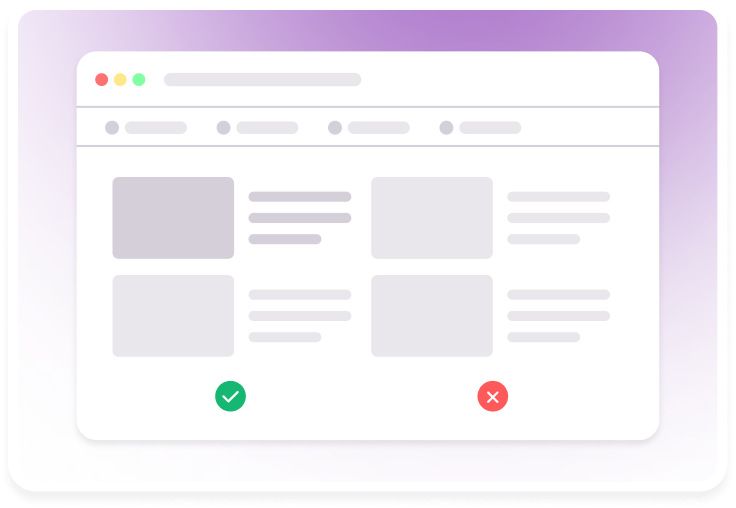
A Complete Guide to Visual UI Testing in 2026
I used to believe functional testing was enough.
If the feature worked, I assumed the job was done.
That belief changed the moment a button overlapped text, a layout broke on Safari, or a CSS tweak quietly altered brand colors.
Visual UI testing is all about addressing this gap. It checks how an application looks across browsers, devices, and screen sizes, and it catches unintended visual changes before users see them. Instead of relying on manual reviews or hoping someone spots a regression, visual UI testing automatically compares UI states and flags even the smallest inconsistencies.
This article covers what visual UI testing is, how it works, where it fits in modern workflows, and the approaches teams use to prevent visual regressions before users ever see them.
What is Visual UI Testing?
Visual UI testing is the practice of verifying that an application looks exactly as intended across browsers, devices, and screen sizes. It focuses on detecting unintended visual changes (broken layouts, misaligned elements, missing content, font or color shifts) that functional tests cannot catch.
Instead of checking only whether a feature works, visual testing compares the current UI against a known baseline and highlights even minor differences. This ensures that design updates, CSS changes, or browser-specific rendering issues do not silently degrade the user experience.
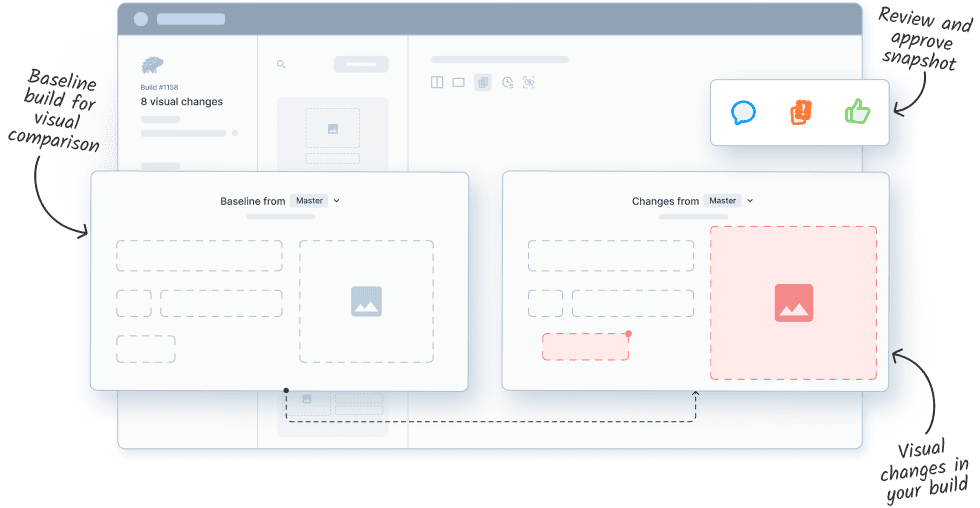
Visual impressions form in 0.5 seconds, use Percy to perfect your website UI.
Why is Visual UI Testing Important?
Functional tests confirm that an application works, but they don’t guarantee it looks right. Visual UI testing closes this gap by detecting UI regressions that directly affect usability, trust, and conversions, long before users notice them.
Here’s why you need to perform visual UI testing:
- Catch What Functional Tests Cannot: Up to 70% of UI bugs are visual in nature, like misaligned elements, broken layouts, clipped text, yet functional tests do not identify these issues. Visual UI testing validates the experience users actually see.
- Prevent Costly Production Regressions: Visual defects discovered after release take 3x longer to fix than those caught during development. Visual UI testing reduces the rework and release delays by implementing visual checks into CI.
- Protect Conversion Rates and Revenue: Every minor visual inconsistency can drop your conversions by 20-30%. Visual UI testing ensures critical user journeys remain intact across updates.
- Scale QA Without Scaling Manual Effort: The pace and accuracy of manual UI checks doesn’t scale according to rapid releases or growing device matrices. Visual UI testing can scale its automation to your needs, across hundreds of pages and browsers instantly.
- Improve Team Confidence and Release Velocity: Teams with strong visual regression coverage ship faster because they trust their UI. Fewer rollbacks, fewer hotfixes, and clearer signals on what actually changed.
Visual UI testing tools like Percy make this process faster and more reliable. They automatically surface layout shifts and styling changes so your team can fix issues before they reach users.
Percy Guarantees 3× Faster UI Reviews
When to Perform Visual UI Testing?
Knowing when to perform visual UI testing is important because visual issues introduced early become harder to trace and fix later in the release cycle.
Here are some stages you can consider implementing visual UI testing:
- After Design System or UI Refreshes: Design changes account for a large share of post-release defects; even a single token update (color, spacing, font) can cascade across hundreds of screens. Visual UI testing ensures consistency at scale without relying on manual spot checks.
- When Fixing CSS or Frontend Bugs: Over 60% of UI regressions originate from “safe” CSS changes. Visual UI testing acts as a regression safety net, catching unintended side effects across unrelated pages.
- For Cross-Browser Compatibility: Browsers render the same CSS differently, subtle layout shifts are common between Chrome, Safari, and Firefox. Visual UI testing exposes these differences instantly, avoiding production-only surprises.
- During Responsive and Multi-Device Testing: Mobile users abandon sites that appear broken or misaligned on their device. Visual UI testing validates layouts across breakpoints and real screen sizes, not just emulators.
- Before Major Releases or High-Traffic Events: UI defects during launches can directly impact conversion rates and brand trust. Visual UI testing provides final-stage confidence when the cost of failure is highest.
What Are Visual UI Testing Tools?
Visual UI testing tools help teams automatically find visual problems in an application’s interface. After a code change, they check how a page or component looks and compare it with an approved reference image, or ‘baseline’. This makes it easier to spot issues that are hard to catch by hand, such as differences across browsers, screen sizes, or devices.
Use Percy’s real-device infrastructure to achieve perfect visual accuracy.
Visual UI testing tools like Percy provide consistent coverage across many pages without relying on manual reviews. By automating these checks, teams reduce missed UI issues and keep reviews quick and easy to manage.
Top 10 Visual UI Testing Tools for 2026
Handpicking the best 10 tools for 2026 required me to look beyond the features. I evaluated each option based on accuracy, stability of comparisons, CI compatibility, browser and device coverage, learning curve, and how well they fit into real development workflows.
Top 10 Visual UI Testing Tools for 2026
- Percy: AI-driven visual testing covering web and mobile
- Applitools Eyes: Automated visual testing across browsers and devices
- BackstopJS: Open-source visual regression testing using headless browsers
- Chromatic: Visual testing and review for Storybook components
- Testplane: JavaScript-based visual regression testing framework
- Needle: Lightweight visual regression testing for web projects
- Aye Spy: Open-source visual regression testing with Selenium
- Vizregress: Visual regression testing built on Selenium WebDriver
- Galen Framework: Layout and visual testing based on design specifications
- Visual Regression Tracker: Self-hosted platform for managing visual regression tests
These 10 tools below stand out because they support reliable visual checks without adding unnecessary complexity.
1. Percy By BrowserStack
Percy by BrowserStack is an AI-powered visual UI testing platform designed to catch layout shifts, styling changes, and other visual regressions before they reach users. It integrates seamlessly into CI/CD pipelines, allowing teams to automate visual checks and focus only on meaningful differences.
With AI-powered Percy embedded in our quality pipeline, we’ve moved beyond code validation—into protecting the brand experience at scale, with precision and speed.

Percy is ideal for teams that:
- Want to catch visual regressions early in development and prevent user-facing UI bugs
- Need scalable visual coverage across multiple browsers, devices, and viewports
- Already have functional automation and want to add visual checks without disrupting workflow
- Aim to maintain design consistency as the product scales across releases
- Want to unify visual coverage across mobile devices, and mobile app browsers
Key Features and Impact of Percy:
| Feature | What It Does | Why It Matters | Impact |
|---|---|---|---|
| AI-Accelerated Setup & Coverage | Automatically configures visual tests and integrates with existing frameworks and CI/CD workflows. | Reduces manual effort and time spent setting up visual testing. | Teams can start visual testing up to 6× faster. |
| Visual Noise Suppression | Uses Visual AI and Intelli-ignore to filter out dynamic elements like animations, ads, or banners. | Prevents false positives from transient content that isn’t relevant to UI correctness. | Reduces review noise and unsupported diffs caused by dynamic content. |
| Cross-Browser & Device Rendering | Captures snapshots across thousands of browser and device combinations,both on web and mobile. | Ensures UI consistency and detects environment-specific issues early. | Teams can validate visual accuracy across multiple platforms (web and mobile). |
| Snapshot Stabilization | Freezes animations and handles dynamic content during screenshot capture. | Produces consistent, reliable comparisons by reducing flakiness in visual tests. | Fewer false positives and higher confidence in visual diffs. |
| AI-Assisted Review & Prioritization | Highlights high-impact visual changes and provides natural-language summaries. | Speeds up review workflows and helps teams focus on meaningful UI differences. | Review time can be reduced by up to 3×. |
| Parallelization & Scalable Testing | Supports parallel test runs and groups snapshots across CI processes. | Allows visual tests to scale with team size and release frequency. | Enables efficient handling of large test suites across distributed pipelines. |
Pricing: Percy starts with a free plan that includes unlimited on-demand website scans, guided visual reviews, and a centralized reporting dashboard. Paid plans start from $149/month.
Verdict: Percy helps teams catch visual regressions across browsers, devices, and screen sizes. It is ideal for teams shipping frequent updates or managing large, dynamic applications.
Test Across 3500+ Real Devices and Browsers.
2. Applitools Eyes
Applitools uses AI-powered visual comparison to mimic human perception and detect meaningful visual discrepancies across apps and devices. Its core strength is reducing false positives by understanding visual context rather than strict pixel differences.
Key Features of Applitools Eyes:
- Visual AI comparison
- Cross-browser and device support
- CI/CD integrations
Limitations of Using Applitools Eyes:
- Unstable results from emulators as there’s no real device infrastructure
- No test recording feature to document your diffs and review history
- Difficult to minimise flakiness and noise in your test results using emulators
Pricing: $969 per month, billed annually.
Verdict: Applitools Eyes fits teams that need visual validation at scale, but it’s not ideal for teams that prioritise visual accuracy using real devices, recording your tests, or other device-specific testing.
3. BackstopJS
BackstopJS captures screenshots and compares them to baselines to spot layout, style, and content shifts as code changes. It solves the problem of inconsistent UI delivery in CI pipelines without requiring commercial tooling.
Key Features of BackstopJS:
- Screenshot capture
- Image comparison
- CI/CD integration
Limitations of BackstopJS:
- Requires manual configuration for advanced scenarios
- Limited mobile device support
- Smaller community
Pricing: BackstopJS is a free, open-source platform, and it can be installed via NPM.
Verdict: BackstopJS fits teams comfortable with open-source tools and custom configuration; not suited for teams that require out-of-the-box dashboards or minimal setup.
4. Chromatic
Chromatic integrates tightly with Storybook to automatically generate visual snapshots of UI components and detect regressions as the design evolves, solving inconsistent component visuals in design systems.
Key Features of Chromatic:
- Component snapshot testing
- Collaborative review UI
- CI/CD automation
Limitations of Chromatic:
- Pricing grows with snapshot volume
- Less useful if you aren’t using Storybook
- Configuration overhead
Pricing: Starter package at $179/month and pro package at $399/month
Verdict: Chromatic fits teams using Storybook and component-driven development; not suitable for teams without isolated UI components or Storybook workflows.
5. Testplane
Testplane (formerly known as Hermione.js) is an open-source JavaScript visual regression tool built on WebDriverIO and designed for parallel execution, addressing slow test runs in large JS test suites.
Key Features of Testplane:
- Parallel test execution
- WebDriver/DevTools support
- Rerun failed tests
Limitations of Testplane:
- Setup is less beginner-friendly
- Smaller community
- Fewer advanced features than commercial scopes
Pricing: Free, open-source platform that requires BrowserStack Percy as add-on to equip real device infrastructure.
Verdict: Testplane fits JavaScript teams with existing WebDriverIO infrastructure; less suitable for teams new to visual UI testing or seeking managed tooling.
6. Needle
Needle is a lightweight Python-based tool that integrates with Selenium to compare screenshots against baselines, solving simple regression checks without heavy frameworks.
applitools.com
Key Features of Needle:
- Screenshot comparison
- Viewport control
- Image diff libraries
Limitations of Needle:
- Basic comparison logic
- Lacks rich UI dashboards
- Limited advanced features
Pricing: Completely free and open-source, often used with Selenium and nose.
Verdict: Needle fits Python teams needing lightweight visual checks; not suitable for large applications requiring cross-browser coverage and rich reporting.
7. Aye Spy
Aye Spy focuses on high-performance visual comparisons, enabling rapid regression checks (up to 40 screenshots/min), solving slow comparisons in large test sets.
Key Features of Aye Spy:
- Fast image comparisons
- Threshold control
- Open-source
Limitations of Aye Spy:
- Limited documentation and community support
- Needs Selenium Grid
- Lacks advanced features of full tools
Pricing: Self-hosted free tool, but requires additional setup costs for infrastructure and cloud storage.
Verdict: Fits teams prioritizing fast image comparison and open-source flexibility; less suitable for teams needing strong documentation or visual review workflows.
8. Vizregress
Vizregress is a visual regression testing tool built around screenshot comparison and Git-based workflows. It focuses on helping teams catch unintended UI changes early by comparing visual snapshots across builds without adding heavy infrastructure or complex setup.
Key Features of Vizregress:
- Screenshot-based visual regression tracking
- GitHub and GitLab integration for pull request reviews
- Baseline versioning tied to code changes
- Lightweight setup for CI environments
Limitations of Vizregress:
- Limited browser and device coverage compared to cloud-based grids
- Relies heavily on static screenshots, making dynamic content harder to manage
- Fewer collaboration and review features for large QA teams
Pricing: Free tool
Verdict: Fits teams that want simple visual regression checks closely tied to Git workflows; does not fit teams that need large-scale cross-browser, cross-device visual coverage or advanced review workflows.
9. Galen Framework
Galen Framework specializes in layout and responsive design validation with a simple syntax, solving layout consistency issues across screen sizes.
Key Features of Galen Framework:
- Responsive layout testing
- Spec-based layout assertions
- Selenium integration
Limitations of Galen Framework:
- Visual coverage is limited to spacing and alignment
- Depends on local or configured browsers, does not offer a real device infrastructure
- No review and approval history or recording
Pricing: Free, open-source tool distributed under Apache License.
Verdict: Fits teams focused on responsive layout validation across screen sizes; not suitable for teams looking for pixel-perfect visual comparisons.
10. Visual Regression Tracker
Visual Regression Tracker is a self-hosted baseline management tool that tracks visual changes over time while keeping data internal, solving privacy and control concerns.
Key Features of Visual Regression Tracker:
- Baseline tracking dashboard
- Multi-language SDKs
- Review UI
Limitations of Visual Regression Tracker:
- Hosting and maintenance overhead
- Longer initial setup
- Requires infrastructure comfort.
Pricing: Free platform, but requires additional infrastructure using tools like Percy
Verdict: Fits teams that require self-hosted visual baselines and data control; less suitable for teams seeking a fully managed SaaS experience.
Visual UI Testing vs Functional UI Testing: Core Differences
Although visual UI testing and functional UI testing are used together, they solve different problems.
Functional tests confirm that actions work as expected, while visual tests confirm that users see the interface as intended. Teams often mix them because both perspectives are needed to understand product quality.
| Criteria | Visual UI Testing | Functional UI Testing |
|---|---|---|
| Primary Focus | Appearance and layout of the interface | Behavior and logic of user interactions |
| Detects | Layout shifts, spacing issues, visual regressions, styling changes | Button clicks, form submissions, navigation flows, API-triggered actions |
| Test Method | Screenshot comparison against a baseline | Assertions based on DOM events, values, and expected outputs |
| Failure Type | Visual diff exceeds acceptable threshold | Code logic fails or an expected action does not occur |
| Strengths | Captures issues humans often miss, supports broad device and browser variations | Validates core functionality and ensures workflows operate correctly |
| Limitations | Does not confirm behavior or data accuracy | Cannot detect visual issues or subtle UI shifts |
| Typical Use Cases | UI redesigns, design system updates, CSS refactoring, UI consistency checks | End-to-end flows, form validation, authentication checks, feature behavior validation |
Major Challenges of Visual UI Testing
Visual UI testing uncovers issues that functional tests miss, but it also introduces challenges that teams must manage to make it effective at scale.
- Too Many False Alerts: Minor rendering differences from fonts, browsers, animations, or dynamic content can trigger unnecessary failures. Visual UI testing tools like Percy use intelligent visual diffing with built-in tolerance and CSS stabilization to filter out insignificant pixel-level differences.
- Keeping Baselines Up to Date: Every intentional UI change requires baseline updates. In fast-moving teams, poorly managed baselines can quickly fall out of sync with product changes. Tools such as Percy manage baselines automatically per branch and build, ensuring visuals stay in sync with product evolution without manual rework.
- Handling Dynamic Content: Data-driven UIs, ads, timestamps, and user-specific content complicate comparisons. Tools including Percy support advanced snapshot configuration, including selective ignoring and masking that allows teams to exclude volatile regions while still validating the rest of the UI with confidence.
- Setup and Integration Effort: Some tools demand significant setup, scripting, or infrastructure management. Visual testing tools like Percy integrate directly with popular test frameworks and CI tools with minimal configuration.
- Cost vs Coverage Trade-offs: Running visual tests across many environments can increase infrastructure costs. Percy captures once and renders across multiple browsers and viewports, dramatically expanding coverage without multiplying test runs or infrastructure costs.
Types of Visual UI Testing
There are four primary types of visual UI testing: manual testing, automated testing, regression testing, and cross-browser testing.
Here’s more about each type of visual UI testing, where they differ, and how it helps your specific needs:
1. Manual Visual Testing
Manual testing relies on a tester reviewing screens directly in the browser or application. They inspect spacing, alignment, color usage, typography, and component behavior based on visual cues instead of automated comparisons. Testers often zoom in, resize the window, trigger interactions, and check multiple states to understand how the interface behaves under real use.
Key Aspects of Manual Visual Testing:
- Human Driven Perception: Manual testers apply visual judgment to identify aesthetic inconsistencies, spacing faults, or subtle design flaws that automated tools often overlook.
- Real Interaction Validation: Testers move through the interface naturally and observe issues that appear only during hovers, scrolls, modal openings, or multi step flows in real usage.
- Design Intent Verification: Manual review checks whether the UI reflects the intended visual hierarchy, brand personality, and overall design direction rather than just matching pixels.
- Exploratory Visual Assessment: Testers can move beyond predefined scenarios to uncover unexpected layout shifts, overlapping elements, or unpredictable behavior triggered by unusual user actions.
- Contextual Environment Testing: Humans can assess UI quality under real conditions such as different brightness levels, OS zoom settings, accessibility modes, and touch interactions.
- Subjective Quality Checks: Manual testing captures issues related to readability, proportion, icon consistency, and visual harmony, all of which directly influence user satisfaction.
- Complex Rendering Review: When animations or micro interactions matter to the experience, manual observation helps validate smoothness, timing, and visual cohesion.
- Real Content Validation: Testers use genuine or long form content to expose clipping, truncation, and wrapping issues that placeholder text does not reveal.
- Adaptive Layout Evaluation: Manual evaluations catch layout changes during live window resizing or device rotation to ensure components adapt smoothly across states.
When to use: Use when building new layouts, validating design consistency before release, or reviewing UI that changes too frequently to maintain stable baselines.
2. Automated Visual Testing
Automated visual testing captures screenshots of defined screens or components and compares them to stored baselines. Systems detect differences in layout, spacing, color, and component structure. Modern tools apply visual intelligence to ignore noise from animations or environment differences. The workflow fits into CI pipelines so tests run on every code update.
Key Aspects of Automated Visual Testing:
- Pixel-Level Detection: Automation compares screenshots against baselines with high precision so even subtle visual shifts are captured without manual review.
- Layout-Aware Diffing: Engines automatically ignore dynamic areas and focus only on structural or layout-impacting changes to reduce noise in automated runs.
- Automatic Baseline Management: Baselines are created, stored, versioned, and updated through automation so teams do not maintain them manually.
- Dynamic Ignore Regions: Automated rules mask unstable UI zones such as timestamps or ads so tests stay stable across repeated executions.
- Responsive Snapshot Automation: The system captures screens across breakpoints and device sizes without manual setup, ensuring every layout state is validated.
- Cross-Environment Execution: Automated jobs run visual tests across browsers, viewports, and devices to detect environment-specific regressions at scale.
- Parallel Test Execution: The automation layer distributes visual tests across nodes to deliver quick feedback even for large suites.
- CI Pipeline Integration: Automated visual checks trigger during builds so regressions surface early in development workflows.
- Component Snapshot Automation: Individual components render automatically in isolated environments so design system updates can be validated without full-page tests.
When to use: Use when the UI is stable enough for baseline comparisons and when teams need fast validation for changes pushed through pull requests or daily builds.
Scale into 3x faster build times reducing visual noise using Percy.
3. Visual Regression Testing
This method verifies detecting unexpected visual changes caused by code modifications. Tests capture screenshots before and after changes and compare both sets. Regression tools look for shifts that are not part of the intended update. They help teams identify issues triggered by style inheritance, component refactoring, or shared CSS changes that ripple across screens.
Key Aspects of Visual Regression Testing:
- Baseline Comparison Workflow: Visual regression testing relies on stored baseline images and compares new screenshots against them to detect unintended UI changes introduced by fresh code.
- Detection of Unintended Drift: This approach identifies shifts in spacing, component position, colors, alignment, and styling that occur gradually across releases and are difficult to catch manually.
- Structured Change Validation: Only differences that deviate from approved UI states are flagged, helping teams distinguish between intentional design updates and accidental breakage.
- Historical UI Tracking: Each baseline update creates a visual history of the interface, allowing teams to review how components evolve and quickly roll back if a change hurts usability.
- High Accuracy for Stable Components: Static or predictable UI elements benefit most because regression tests highlight even the smallest discrepancies produced by CSS refactoring or layout adjustments.
- Consistent Validation Across Environments: Regression tests maintain stable expectations across browsers, devices, and viewports, ensuring that each environment reflects the same approved visual state.
- Confidence in Rapid Releases: By catching drift early, visual regression testing helps teams move quickly without sacrificing UI consistency, even when multiple developers work on shared visual layers.
When to use: Use when modifying global styles, reworking components used across the product, or refactoring CSS where a single update could impact multiple pages.
4. Cross Browser Visual Testing
Cross browser testing evaluates the interface across different browser engines such as WebKit, Blink, and Gecko. Each engine interprets CSS rules, flexbox behavior, and fonts slightly differently. Tools capture screenshots in each environment and compare them to expected output, helping teams identify browser-specific rendering defects.
Key Aspects of Cross Browser Visual Testing:
- Browser Rendering Validation: Each browser uses a different rendering engine, and cross browser visual testing verifies that layouts, colors, fonts, and spacing appear consistently across all of them.
- Detection of Engine-Specific Issues: Differences caused by WebKit, Blink, or Gecko engines surfaced early so teams can fix browser-only defects that functional tests often overlook.
- Coverage Across Versions: Older or less frequently used versions of browsers are included to ensure UI stability for users who have not upgraded to the latest release.
- Consistent Design Fidelity: The process checks that branding elements, typography rules, and icon rendering behave as expected across desktop and mobile browser variants.
- Environment-Aware Verification: Factors like GPU rendering, OS-level settings, and device pixel ratios influence visual output, and cross browser testing helps catch issues tied to these variations.
- More Reliability for Global Audiences: Teams serve users with diverse browser preferences, and cross browser visual testing ensures a uniform experience regardless of platform choice.
When to use: Use when supporting users across multiple browsers or when testing features built with CSS properties that have inconsistent browser behavior.
Test Across 3500+ Real Devices and Browsers.
Best Practices for Visual UI Testing
The practices below help teams build visual tests that stay stable over time and give accurate signals about real UI changes.
- Define Testing Priorities: Focus on the screens and flows that matter most to users. Identify pages that carry high traffic, components reused across the product, and areas affected by recent design or layout updates. Prioritization keeps suites lean and directs attention to the parts of the UI where regression risk is highest.
- Maintain Consistent Environments: Use the same browser version, OS, resolution, and font settings for every run. Even small differences in rendering can create unreliable diffs. Consistency ensures that flagged changes reflect actual UI shifts rather than variations from the environment.
- Control Dynamic Elements: Mock, mask, or stabilize content that updates on every load. Timestamps, rotating ads, notification counts, or animated values create noise that distracts from meaningful checks. Controlling these elements helps tests focus on real layout and styling issues.
- Test Multiple Breakpoints: Capture screens at the key viewport sizes your users rely on. Layout behavior often changes at breakpoints, so this coverage reveals issues like overlapping content, improper wrapping, or misplaced components that appear only in specific resolutions.
- Validate Components in Isolation: Run visual checks for individual UI components before testing full pages. Component-level validation helps detect issues early, especially in applications built on a shared design system. Fixing problems at the component stage reduces downstream noise and prevents repeated failures across multiple screens.
- Integrate Testing Into CI/CD: Run visual tests automatically during each commit or pull request. This keeps changes transparent, helps teams spot regressions early, and reduces the risk of issues accumulating over several releases.
- Manage Baselines With Care: Update baselines only when a design change is intentional. Track baseline updates to understand how the interface evolves over time. Thoughtful baseline management prevents regressions from hiding behind unnecessary approvals.
- Review Diffs Quickly: Assign clear ownership for reviewing visual test reports soon after each run. Fast feedback prevents unaddressed changes from piling up and keeps the entire suite predictable and healthy.
Why Choose Percy For Your Visual UI Testing Needs
Percy helps teams catch visual regressions early by automatically comparing UI snapshots against approved baselines with pixel-level accuracy. Instead of relying on manual reviews or subjective checks, Percy highlights exactly what changed, so visual bugs never slip through unnoticed.
Percy efficiently integrates into modern CI/CD workflows. Visual tests run automatically on every commit or pull request, ensuring UI consistency without slowing down development. This makes visual testing a natural extension of the existing testing strategy, not an extra step.

Powered by intelligent visual diffing, Percy minimizes noise from dynamic content, animations, and minor rendering variations. Teams see only meaningful visual changes, reducing false positives and speeding up review cycles.
With built-in support for responsive testing and cross-browser coverage, Percy ensures the UI looks correct across devices, screen sizes, and browsers. This eliminates last-minute surprises caused by browser-specific rendering issues.
Percy also improves collaboration. Visual diffs appear directly in code reviews, allowing developers, designers, and QA teams to review, discuss, and approve UI changes together, before anything reaches production.
Backed by BrowserStack’s testing infrastructure, Percy scales effortlessly with growing applications, helping teams ship visually consistent, high-quality user experiences with confidence.
Do you need AI-powered Visual Detection?
Conclusion
Visual quality is one of the first things users notice and one of the easiest areas for regressions to slip through. As teams ship faster, UI changes can introduce subtle layout shifts, broken components, or inconsistencies that functional tests simply can’t detect. Reliable visual testing ensures these issues are caught early, keeping interfaces polished and user trust intact.
Percy brings structure and consistency to that process. Its automated snapshots, intelligent diffing, and real-browser coverage make visual checks effortless and dependable. By integrating Percy into your workflow, teams maintain UI stability release after release, and ship with confidence knowing every visual detail has been validated.
Related Articles
What is Visual Testing [A 2026 Guide]
Many visual bugs slip past automation. Visual testing adds a safety net by comparing how your websit...

Conducting Visual Testing With Cypress: A Step-By-Step Guide
Learn how to run visual regression testing with Cypress and Percy to catch UI bugs, reduce flakiness...

Top Cross Browser Visual Testing Tools in 2026
Explore top cross browser visual testing tools for 2026, compare features, pricing, and learn how to...