
Eliminate Visual Bugs Early, Instantly

What Are Visual Bugs? | Bug Types, Best Practices
If you scroll online long enough, you will eventually land on a website where something feels off. Nothing is technically broken, yet you will spot random issues like a button sitting too close to the edge or an image that looks slightly out of place.
These issues are called visual bugs. They do not stop features from working, but they diminish the overall polish and reliability of your product. When these visual issues slip through production and reach users, they may question the quality of the entire product.
I’m here to shed some light on visual bugs, how they appear across different devices, screen sizes and browsers. And yes, we’ll also walk through how to effectively prevent them using modern visual testing tools, such as Percy.
What Are Visual Bugs?
Visual bugs are defects that affect the appearance of an application’s interface rather than how it functions. They occur when UI elements do not look the way they were intended, even though the feature itself may still work.
These issues often show up after design or styling changes, or when the same page is viewed across different browsers, devices, or screen sizes. Because visual bugs do not always break workflows, they can slip through testing and reach users unnoticed.
No More Abandoned Checkouts Because of Visual Issues
Types of Visual Bugs

Visual bugs can affect different parts of the interface and often show up only under specific conditions.
Below are the most common types, along with brief context on how they typically surface in real applications:
- Layout and Alignment Issues: Elements shift from their intended positions, overlap, or break grid structures. For example, a checkout summary may overlap the payment button after a CSS update, making the action hard to find.
- Typography Errors: Fonts, text sizes, or line spacing appear incorrect, or text gets clipped. This often happens when a font fails to load or when long labels overflow their containers on smaller screens.
- Responsive Design Failures: Layouts fail to adapt properly across screen sizes, causing hidden content or stretched components. A navigation menu that works on desktop but collapses incorrectly on mobile is a common case.
- Color and Contrast Issues: Incorrect colors or low contrast reduce clarity and accessibility. For instance, a hover state may become unreadable after a theme update.
- Image and Icon Problems: Images may appear blurry, stretched, or missing altogether. Broken product images or misaligned icons in a header are typical examples.
- Cross-Browser or Device Malfunctions: The same page renders differently across browsers or devices. A layout that looks fine in Chrome but breaks in Safari is a frequent issue.
- Spacing Issues: Inconsistent padding or margins make interfaces feel cramped or uneven. This can happen when shared components inherit unexpected spacing rules.
- Invisible or Hidden Elements: Buttons or text may not appear at all due to styling or rendering problems. For example, white text on a white background can make critical actions effectively invisible.
Common Examples For Visual Bugs
Visual bugs often surface during routine interactions and become obvious only when users try to complete simple tasks.
Below are common scenarios that highlight how these issues appear in real applications:
- Broken Layouts and Shifting Sections: Page sections move out of place or overlap after a UI update, such as a sidebar sliding over main content on certain screen sizes.
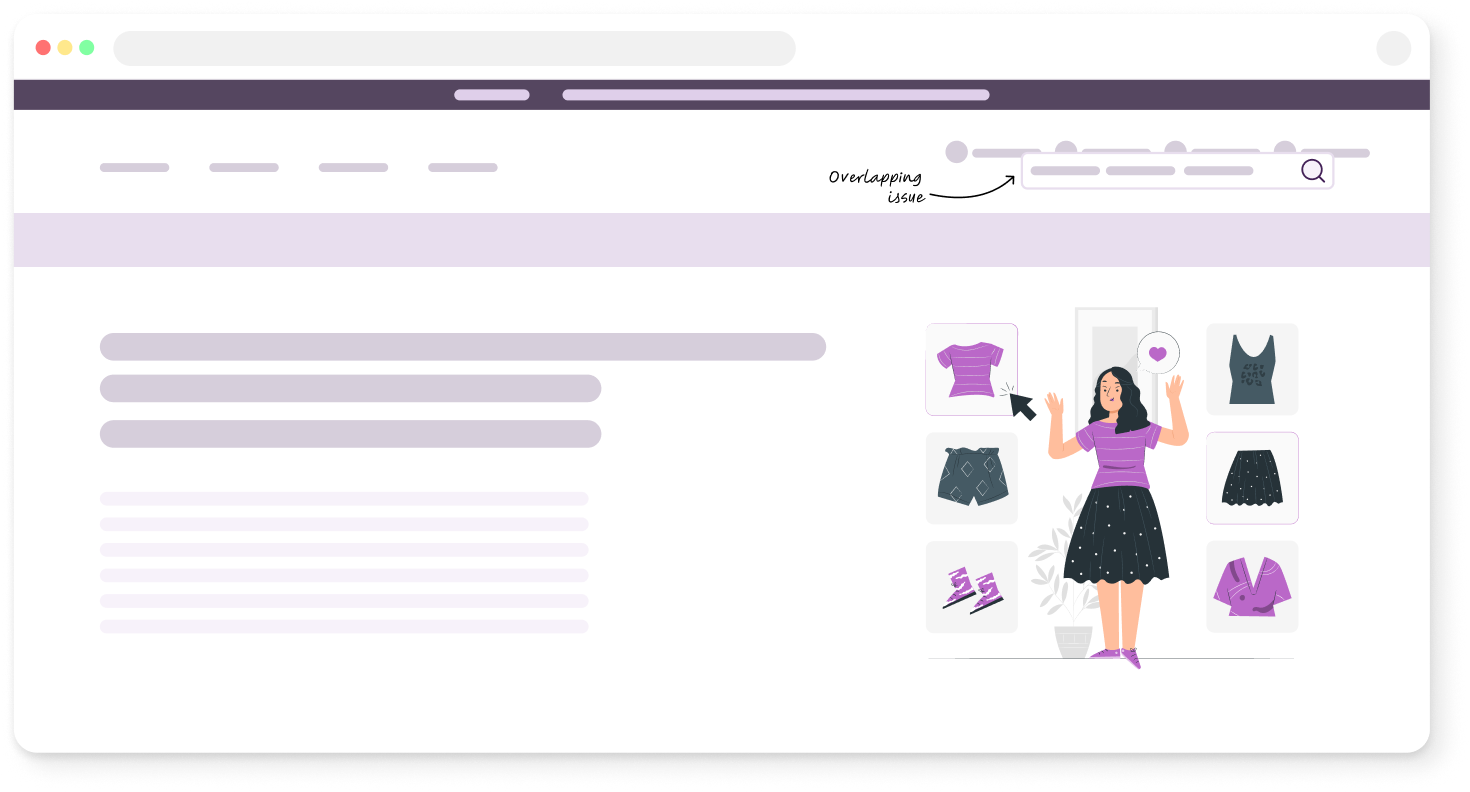
- Text Truncation and Clipping: Labels, headings, or form text get cut off when content length changes or when viewed on smaller screens.
- Missing or Incorrect UI States: Buttons, links, or inputs fail to show the correct visual state, such as disabled buttons appearing active or error states not being visible.
- Image and Media Rendering Issues: Images load partially, appear distorted, or do not match their containers, which can break visual flow on product or marketing pages.
- Inconsistent Styling Across Screens: Fonts, colors, or spacing differ between pages, making the interface feel fragmented and unpolished.
- Hidden or Hard-to-Find Actions: Important actions fall below the visible area or blend into the background, causing users to miss key steps in a flow.
Impact of Visual Bugs on Businesses’ Bottom Line
Visual bugs may seem small, but their consequences for business can be significant. Key impacts include:
- Lost Conversions and Revenue: Misaligned buttons, broken images, or clipped content can prevent users from completing purchases or signing up for services.
- Frustrated Users: Poor layouts and inconsistent visuals make navigation confusing, increasing the chance of abandonment.
- Damaged Brand Perception: Inconsistent styling or unpolished interfaces reduce trust and make the product feel low-quality.
- Increased Support Costs: Users encountering visual issues may reach out to support more frequently, adding to operational overhead.
- Reduced Confidence in Product Quality: Frequent UI issues can lower overall user confidence, impacting retention and long-term engagement.
Protect Your Releases, Find Hundreds of Visual Bugs in One Click
How to Address Visual Bugs?
Detecting visual bugs requires a mix of manual checks and automated tools to ensure the interface appears correctly across devices, browsers, and screen sizes. Manual testing helps catch subtle issues that automation might miss, while automated checks speed up detection and maintain consistency.
Common methods to identify visual bugs include:
- Cross-Browser and Cross-Device Testing: Test the application on multiple browsers and devices to spot rendering differences. Tools like Percy bring a comprehensive list of over 3500 devices and browsers with different screen sizes, so you can test your visual coverage all at once.
- Visual Regression Testing: Visual regression testing captures screenshots of the current UI and compares them with a baseline to detect unintended changes. Minor shifts in alignment, color, or spacing are flagged automatically, helping maintain pixel-perfect layouts.
- Exploratory Testing: Interact freely with the interface to uncover unexpected issues, such as hidden text, broken icons, or misbehaving hover effects. This is especially useful for dynamic content and complex workflows.
- Accessibility Checks: Review contrast, font sizes, and element visibility to identify inconsistencies that affect readability or usability, while also ensuring compliance with accessibility standards.
Visual Bug Capture Using BrowserStack Percy
BrowserStack Percy is an all-in-one visual QA testing tool designed to catch visual bugs before they reach users. It integrates into your existing workflow, capturing screenshots of web pages or components and automatically highlighting visual differences compared to a baseline. This allows teams to detect layout shifts, styling issues, and cross-browser inconsistencies early in the development cycle.
Here’s an overview of Percy’s key features for visual bug detection and their impact on business:
| Feature | Description | Business Impact |
|---|---|---|
| DOM Snapshot & Cross-Browser Rendering | Captures the page’s DOM and assets, then re-renders across browsers and responsive widths in the cloud. | Catches Environment-Specific Bugs: Ensures layouts work across browsers and devices without extra manual testing. |
| Real Device Cloud | Screenshots are taken on 50,000+ real web, iOS and Android devices instead of emulators. | Guaranteed Accuracy: Detects device-specific bugs like notch interference or native font issues. |
| Visual AI Engine (Noise Reduction) | Freezes animations and ignores dynamic content to reduce false positives. | Saves QA Time: Cuts up to 80% of irrelevant visual alerts, focusing only on real bugs. |
| Visual Review Agent (Generative AI) | AI analyzes visual diffs, groups changes, and provides summaries of what changed. | Faster Reviews: Reduces manual review time by 3x by highlighting meaningful UI changes. |
| Scalable Parallelization | Runs visual tests in parallel and groups snapshots for comparison with the main branch baseline. | Faster Releases: Enables comprehensive testing on every commit without slowing pipelines. |
| Shift Detection & Layout Logic | Distinguishes intentional shifts from real layout breaks. | Focus on Critical Issues: Prevents false alerts from minor content movement. |
Using Percy helps businesses avoid lost revenue, maintain user trust, and reduce support overhead by catching visual issues early. Teams can automate repetitive visual checks while still reviewing meaningful changes, making QA more efficient and reliable.
Best Practices For Visual Bug Testing
Following best practices for visual testing helps teams catch issues early, reduce manual effort, and maintain a polished user experience across devices and browsers. Here are key strategies:
- Establish Clear Visual Baselines: Capture approved screenshots of your UI as a reference point. Future tests compare against these baselines to quickly identify unintended changes.
- Prioritize Critical User Flows: Focus visual testing on areas that directly impact user actions, like checkout pages, forms, and key navigation elements.
- Test Across Real Devices and Browsers: Validate your interface on the devices and browsers your users actually use. Real-world testing prevents environment-specific bugs from slipping through.
- Use Automated Visual Regression Tools: Leverage tools like Percy to automate screenshot comparisons and highlight layout shifts, missing elements, or styling inconsistencies.
- Incorporate Visual Checks in CI/CD: Run automated visual tests on every pull request or merge to detect regressions early and reduce last-minute fixes.
- Collaborate on Reviews: Involve designers, developers, and QA in reviewing flagged visual changes. Shared feedback improves decision-making and speeds approvals.
- Update Baselines Intentionally: Approve changes only when they are expected and verified. Treat baseline updates as controlled updates, not quick fixes.
Catch visual bugs before users do
Percy by BrowserStack delivers automated visual testing that detects UI regressions across browsers, devices, and builds.
Conclusion
Visual bugs may seem minor, but they can have a major impact on user experience, brand perception, and business performance. Even when functionality works perfectly, misaligned layouts, broken images, or inconsistent styling can frustrate users and reduce trust in your product.
By incorporating visual QA into testing workflows, teams can catch issues early, maintain polished interfaces across devices and browsers, and prevent costly post-release fixes. Tools like BrowserStack Percy make this process efficient, allowing teams to automate visual checks while still reviewing meaningful changes.
Ultimately, consistent visual QA helps deliver a seamless, professional experience that keeps users engaged and satisfied.
FAQs
Tools like BrowserStack Percy, Applitools Eyes, and BackstopJS are widely used for visual bug detection. They automate UI comparisons across browsers and devices, highlight layout shifts or styling changes, and help maintain consistent visual quality.
Visual bugs in mobile apps often occur due to responsive design failures, device-specific rendering differences, or incorrect styling. Other causes include font loading issues, image scaling problems, and overlooked screen-size variations during development.
Visual bugs affect how an application looks, such as misaligned buttons, broken images, or inconsistent colors. Functional bugs affect how it works, like a form that doesn’t submit or a calculation that’s wrong. Visual issues don’t break functionality but can hurt usability and user trust.
Related Articles

Conducting Visual Regression Testing With Puppeteer: 2026 Guide
Learn how to perform visual regression testing with Puppeteer and scale it using Percy for reliable,...

Visual Regression Testing Your Android Applications Using Espresso
Learn how to use Espresso for Android visual testing and integrate BrowserStack App Percy for scalab...
Visual Testing With Selenium: All You Need to Know in 2026
Learn how to perform visual testing with Selenium, manage baselines, and scale visual regression usi...