
Compare Visual Screenshots With Ease

What is a Visual Comparison Test and How Does it Work?
Struggling to keep up with hundreds of visual bugs manually?
I’ve been there too. Manual visual testing is the foundation of ensuring visual issues don’t slip through production, but it cannot be the only solution to catching hundreds of visual regressions. You need a system that adds on to your existing testing framework, which makes identifying visual tests simpler, and tremendously faster.
Thankfully, visual comparison testing exists for this same reason. Visual comparison tests use a method of capturing screenshots and comparing them against a baseline to catch many visual regressions at once. This automation method has proven to reduce testing time by 40-50% and cut manual testing costs by roughly 70%.
This article is a good starting point if you’re exploring visual comparison testing, learning how you can adopt it to your existing framework. We will also cover some top tools for visual comparison tests, and where each of the tools excels at.
What Is a Visual Comparison Test?
A visual comparison test is a testing method that checks for visual differences in a user interface by comparing screenshots taken at different points in time. It helps identify unintended UI changes that occur after code or design updates.
In practice, this means comparing a new screenshot against an approved baseline image. If elements shift, styles change, or content goes missing, the test highlights those differences. This makes it easier to catch visual issues that functional tests and quick manual reviews often overlook.
Compare 1000+ screenshots, identify visual bugs with one click
How Automated Visual Comparison Tests Work

It is important to understand how visual comparison tests work to identify how it helps your testing methodology at each point of production. Basically, it works as a systematic process, with minor variations depending on specific visual testing tools:
Step 1: Establish Baseline: The process starts by capturing screenshots of the application in a known, approved state. These images act as the visual source of truth and represent how the UI is expected to look. Any future comparison relies on this baseline being accurate and intentionally reviewed.
Step 2: Apply Code or Design Changes: Once updates are introduced, whether through new features, bug fixes, or styling changes, the application is rebuilt or redeployed. At this stage, the goal is not to judge correctness, but to observe how those changes affect the rendered interface.
Step 3: Capture New Screenshots: Automated tools load the updated application and take fresh screenshots under the same conditions used for the baseline. This consistency is critical because differences in resolution, browser, or device can introduce noise that hides real issues.
Step 4: Compare With Baseline: The new screenshots are compared against the baseline images using visual comparison engines. These engines analyze differences in layout, styling, spacing, and content, rather than relying on DOM or code-level checks.
Step 5: Review Visual Diffs: Any detected differences are presented as visual diffs for human review. Testers can quickly see what changed, where it changed, and whether the change was intentional or a regression that needs attention.
Step 6: Approve Fixes and Update Baseline: If a visual change is expected, the baseline is updated to reflect the new approved state. If not, the issue is fixed and re-tested until the UI matches expectations. This step keeps future comparisons accurate and meaningful.
Find What Functional Tests Miss, Scale Your Tests at Exceptional Pace
Top 10 Tools for Visual Comparison Testing
I’ve selected these tools based on how well they handle real-world visual comparison challenges. That includes accuracy of visual diffs, ability to scale across browsers and devices, and how smoothly they fit into CI workflows.
While all these tools compare screenshots, they differ in their primary focus. Some prioritize AI-driven review, others lean toward component testing, open-source flexibility, or developer-first workflows.
Visual Comparison Testing Tools
- BrowserStack Percy: AI-powered visual regression testing platform
- Applitools Eyes: Visual automation tool for UI regressions
- Chromatic: Component-focused UI snapshot comparisons
- TestGrid: Automated multi-environment visual testing
- DevAssure: Low-code visual and functional testing
- BackstopJS: Open-source screenshot-based visual testing
- Reflect: Lightweight visual regression and snapshots
- Playwright: E2E framework with screenshot comparisons
- Cypress: E2E testing with visual plugins
- Storybook: Component library with visual testing
1. BrowserStack Percy
BrowserStack Percy is an AI-powered visual comparison testing tool designed to catch unintended UI changes before they reach users. It compares screenshots against approved baselines to detect layout shifts, styling regressions, and missing or misaligned elements. Percy focuses on reducing visual noise while making real UI changes easy to review and approve.
Some things can’t be easily tested with unit tests and integration tests, and we didn’t want to maintain a visual regression testing solution ourselves. Percy has given us more confidence when making sweeping changes across UI components and helps us avoid those changes when they are not meant to happen.

Percy fits well into fast-moving teams where UI changes are frequent and manual visual checks no longer scale. It brings visual validation directly into CI pipelines, so visual issues surface alongside functional failures rather than after release.
How Percy Suits For Visual Comparison Testing:
| Feature | What It Does | Why It Matters |
|---|---|---|
| Automated Visual Comparison | Automatically captures screenshots during test runs and compares them against approved baselines | Prevents unnoticed UI regressions at every stage of production |
| AI-Powered Diff Review | Filters out visual noise from dynamic content while highlighting meaningful UI changes | Reduces false positives and speeds up review cycles |
| Cross-Browser and Device Coverage | Hosts a real device infrastructure with anytime access to over 50,000+ devices, browsers and viewports | Ensures UI consistency across environments users actually use |
| Mobile and Responsive Testing | App Percy allows visual comparison and validation across mobile breakpoints and screen sizes | Catches mobile-specific and responsive layout issues early |
| CI/CD Integration | Integrates with popular CI tools and test frameworks including BambooCI, TeamCity, Jenkins | Moves visual checks earlier in the development lifecycle |
| Branch-Aware Baselines | Work on separate baselines for different branches | Supports parallel development without visual conflicts |
Verdict:
Percy is a strong choice for teams that want visual comparison testing to feel like a natural extension of their CI process. By combining AI-assisted reviews with real browser infrastructure, it reduces both visual regressions and the manual effort required to catch them.
Compare 1000+ screenshots, identify visual bugs with one click
For products with frequent UI updates or responsive layouts, Percy helps catch visual issues early instead of leaving them for late-stage QA. It also supports teams with multiple contributors by making visual validation an automated and reviewable part of everyday development.
2. Applitools Eyes
Applitools Eyes is a visual comparison platform powered by Visual AI that analyzes UI screenshots with machine learning, focusing on meaningful visual differences rather than raw pixel changes. It integrates with major automation frameworks (Selenium, Playwright, Cypress, etc.) and scales across web, mobile, and desktop test suites.
Key Features:
- Visual AI comparison that focuses on perceptible UI differences
- Parallel rendering across browsers and viewports
- Flexible match levels to control comparison sensitivity
- Centralized dashboard for reviewing and approving visual changes
Limitations:
- Visual AI configuration requires time to tune properly, otherwise teams may still see noisy diffs that slow down reviews
- Does not support a real device infrastructure like Percy, hence there would be compromises to device-specific visual accuracy
- The platform introduces additional concepts (such as match levels, grids, batches) that can slow adoption for new teams
Verdict:
Applitools Eyes suits teams seeking structured, large-scale visual validation across multiple environments. However, its reliance on simulated browsers rather than real devices, combined with higher costs compared to tools like Percy, can make it less practical for smaller teams focused on precise visual accuracy.
3. Chromatic
Chromatic provides visual comparison testing for UI components by capturing snapshots directly from Storybook stories. It integrates tightly with Git workflows, enabling teams to review visual changes as part of pull requests. The tool is designed around component-driven development rather than full-page testing.
Key Features:
- Automatic snapshot generation from Storybook stories
- Cloud-based UI for visual diffs and approvals
- Git and CI integration for visual change tracking
- Snapshot optimization to reduce unnecessary comparisons
Limitations:
- Pixel-based comparisons can introduce noise when UI styles change frequently
- Strong dependence on Storybook limits its use for full-page or flow-based testing
- Do not offer a native visual testing toolkit for mobile applications, thus depending on approximations for mobile screen sizes and viewports
Verdict:
Chromatic works well for teams invested in component libraries and Storybook workflows. It is less suited for validating complete pages or end-to-end user journeys.
4. TestGrid
TestGrid includes visual comparison testing as part of a broader automated visual testing platform. It allows teams to capture screenshots and compare them against baselines across environments. The visual testing features are positioned as part of a unified testing workflow rather than a standalone solution.
Key Features:
- Screenshot capture and baseline comparison
- Multi-environment execution support
- Visual testing integrated with functional test workflows
Limitations:
- Visual diffing capabilities are basic, making subtle issues harder to interpret
- Limited controls for ignoring dynamic content increase false positives
- Reporting lacks depth for fast visual root-cause analysis
Verdict:
TestGrid is suitable for teams looking to manage multiple testing types in one place. Visual comparison is available, but it may feel limited for UI-heavy applications.
5. DevAssure
DevAssure offers visual comparison testing as part of a low-code testing platform. It combines visual UI checks with functional and API testing, aiming to reduce scripting effort. Visual validations are created through configuration rather than code.
Key Features:
- Create and manage visual tests without writing automation code.
- Filters noise to highlight meaningful visual regressions automatically.
- Validate UI consistency across browsers, devices, and responsive breakpoints.
Limitations:
- Limited control over comparison sensitivity and ignore rules
- Broader platform focus can slow innovation in visual-specific features
- Review workflows may feel generic for complex UI regressions
Verdict:
DevAssure fits teams that prefer low-code automation across multiple testing layers. Visual comparison works best as a supporting capability rather than the primary testing strategy.
6. BackstopJS
BackstopJS is an open-source visual regression testing tool that compares screenshots against baselines and generates visual diff reports. It is highly configurable and commonly used in CI pipelines. Setup and maintenance are handled entirely by the user.
Key Features:
- Define visual test scenarios across pages and viewports
- Run visual regression checks reliably within CI pipelines
- Review visual differences through generated HTML reports
Limitations:
- Pixel-level comparisons create frequent false positives from minor rendering changes
- Manual baseline management increases maintenance overhead
- Scaling across browsers and devices requires additional infrastructure
Verdict:
BackstopJS suits teams that want full control and are comfortable maintaining their own visual testing setup. However, although they are flexible, they are comparatively more complex to use for beginner testers.
7. Reflect
Reflect is a visual comparison and automation tool focused on simplifying test creation and review. It captures visual checkpoints during test execution and compares them against stored baselines. The platform emphasizes ease of setup over deep customization.
Key Features:
- Capture visual snapshots automatically during automated test execution
- Run visual regression checks as part of CI workflows
- Review baseline changes and visual diffs through a simple interface
Limitations:
- Limited browser and device coverage can leave visual gaps
- Diff review tools lack detail for fast investigation
- Dynamic UI states often require manual handling
Verdict:
Reflect works for teams looking for a lightweight visual comparison solution. It may fall short for complex or highly dynamic interfaces.
8. Playwright
Playwright includes basic visual comparison capabilities within its end-to-end testing framework. Teams can capture screenshots and compare them against stored snapshots during test execution. Visual testing is implemented through code rather than a dedicated UI.
Key Features:
- Screenshot comparison integrated into E2E tests
- Support for region-based snapshots
- Cross-browser testing within the Playwright ecosystem
Limitations:
- Screenshot comparisons are sensitive to small rendering differences
- No built-in dashboard for reviewing visual diffs
- Manual baseline updates become difficult at scale
Verdict:
Playwright’s visual checks are useful for lightweight validation inside E2E tests. Dedicated visual comparison tools are better suited for large UI surfaces.
9. Cypress
Cypress supports visual comparison testing through plugins and third-party integrations. While Cypress itself focuses on functional E2E testing, visual snapshots can be layered into tests with additional tooling.
Key Features:
- Visual snapshots enabled through community and third-party plugins
- Built on a strong end-to-end testing and automation foundation
- Interactive test runner simplifies debugging visual and functional failures
Limitations:
- Visual testing setup varies depending on plugins used
- Inconsistent results across environments can increase noise
- No native visual review or approval workflow
Verdict:
Cypress can support visual comparison when paired with the right plugins. The added complexity makes it better suited for teams already deeply invested in Cypress.
10. Storybook
Storybook enables visual testing by exposing UI components as isolated stories, which can be paired with external visual comparison tools. Each component state becomes a visual reference point for regression detection.
Key Features:
- Generates snapshots at the individual component level
- Isolates and documents distinct UI states clearly
- Integrates smoothly with external visual testing tools
Limitations:
- Visual comparison depends entirely on third-party services
- Limited visibility into layout issues that occur at page level
- Baseline and approval workflows vary by integration
Verdict:
Storybook-based visual testing is effective for component libraries. It works best when paired with dedicated visual comparison platforms for broader coverage.
Core Components of a Visual Comparison Test
Now, we’re looking at the fundamental components involved in every visual comparison test. These components work together to achieve efficient testing results for QA and developer teams, ensuring that visual regressions do not make it to release cycles. Let’s take a look at them:
- Visual Baseline: A baseline is an approved snapshot that represents how the UI is expected to look. All future comparisons depend on this reference, so it must be reviewed and intentionally accepted. Poorly defined baselines often lead to confusion and unnecessary test failures.
- Screenshot Capture Mechanism: Visual comparison tests rely on consistent screenshot capture across runs. This includes controlling browser versions, viewport sizes, and rendering conditions to ensure differences reflect real UI changes rather than environment noise.
- Comparison Engine: The comparison engine analyzes the baseline and new screenshots to detect differences. Depending on the tool, this may involve pixel comparison, layout analysis, or AI-based perception to filter out insignificant changes.
- Diff Visualization: Visual diffs highlight where and how the UI changed, often using overlays or side-by-side views. Clear diff visualization helps reviewers quickly decide whether a change is expected or a regression.
- Review and Approval Workflow: Human review is a critical step where visual changes are either approved or rejected. Structured workflows reduce the risk of accidentally accepting regressions and keep baselines aligned with product intent.
- Baseline Update Process: When a change is intentional, the baseline must be updated to reflect the new UI state. A controlled update process ensures future tests compare against the correct version of the interface.
When to Conduct Visual Comparison Testing?
Visual QA testing should happen at every stage of development. This prevents simple visual issues from slipping through early checks and becoming harder to identify later in the release cycle. But more specifically, these are all the ‘breaking points’ where visual comparison tests can contribute to effective screening and bug capture:
- After UI or Styling Changes: Any update that affects layout, spacing, colors, or typography is a strong candidate for visual comparison testing. These changes often look correct in one environment but break subtly in others.
- Before Production Releases: Running visual comparisons before a release helps catch regressions that functional tests won’t detect. This is especially useful when multiple features or fixes are bundled into a single deployment.
- During Cross-Browser and Responsive Validation: Visual comparison testing is valuable when verifying how the UI behaves across browsers, devices, and screen sizes. It helps surface issues that only appear at specific breakpoints or browser versions.
- In CI Pipelines for Ongoing Development: Integrating visual tests into CI ensures visual regressions are detected as soon as code is merged. This prevents small UI changes from accumulating into larger, harder-to-debug problems.
- When Scaling UI Surface Area: As applications grow with more pages, components, or variants, manual visual checks stop scaling. Visual comparison testing provides coverage that would otherwise require significant manual effort.
Benefits of Conducting Visual Comparison Testing
Visual comparison testing helps teams control UI quality as products grow and change. It reduces reliance on manual reviews while making visual regressions easier to catch early.
- Early Detection of Visual Regressions: Visual differences are flagged as soon as changes are introduced, preventing small UI issues from reaching later testing stages or production.
- Reduced Manual Review Effort: Automated comparisons replace repetitive screenshot checks, allowing testers to focus on reviewing only meaningful visual changes.
- Improved Cross-Browser Confidence: Visual comparisons across browsers and screen sizes help teams validate consistent UI behavior without testing each environment manually.
- Faster Feedback During Development: Visual test results surface alongside functional test outcomes, making it easier to identify and fix UI issues while changes are still fresh.
- Better Control Over UI Consistency: Approved baselines act as a visual reference point, helping teams maintain consistent design and layout as the product evolves.
Manual Tests Aren’t The Only Answer
Visual Testing vs Visual Comparison Testing: Core Differences
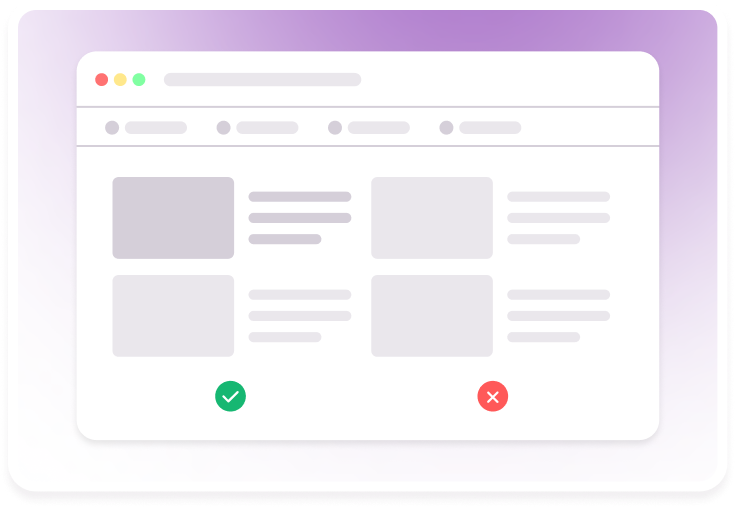
Visual comparison tests is a subset of visual testing, a much more broader concept. Let’s see in detail:
| Aspect | Visual Testing | Visual Comparison Testing |
|---|---|---|
| Scope | Broad UI evaluation, including design correctness, layout, and sometimes accessibility | Focused on detecting unintended visual changes between snapshots |
| Automation | Can be manual, automated, or a mix | Primarily automated, integrated into CI/CD pipelines |
| Method | Manual inspection, exploratory review, or automated checks | Screenshot comparison with diff analysis against a baseline |
| Timing | Used during development, exploratory testing, or QA cycles | Used after code or design changes, often before releases |
| Use Cases | Validating new designs, checking design guidelines, assessing UI quality | Catching regressions, layout shifts, or styling changes after updates |
| Feedback Speed | Can be slower due to manual elements | Fast feedback as part of automated pipelines |
Best Practices For Visual Comparison Testing
Adopting visual comparison testing effectively requires more than just running automated screenshots. Following structured practices helps reduce noise, catch real regressions, and keep review cycles efficient.
- Establish Clear Baselines: Ensure approved screenshots accurately reflect the intended UI. Ambiguous or outdated baselines can create false positives and slow down the review process.
- Control Test Environments: Keep browser versions, viewports, and rendering conditions consistent across runs. Differences in environment can introduce irrelevant changes in comparisons. Tools like Percy allow you to create individual branches with specific baselines, without causing overlaps and confusion.
- Limit Scope Where Needed: Focus on critical UI elements or high-risk areas instead of every pixel on every page. This reduces unnecessary diffs and speeds up review cycles.
- Use AI or Smart Diff Tools: Tools with noise suppression or perceptual comparison like Percy help filter out irrelevant differences, such as minor font rendering variations or dynamic content.
- Integrate Into CI/CD Pipelines: Running visual comparison tests automatically with each build ensures regressions are detected early and reduces manual overhead. For example, Percy integrates with major CI tools such as BambooCI, TeamCity and Jenkins.
- Review and Update Baselines Regularly: Approve intentional UI changes and update baselines promptly. This keeps future comparisons accurate and prevents repeated false alerts.
Conclusion
Visual comparison testing has become a critical part of modern QA, helping teams catch subtle UI regressions that functional tests often miss.
By comparing screenshots against approved baselines, teams can quickly identify layout shifts, styling changes, and other visual inconsistencies before they reach users. Integrating these tests into CI/CD pipelines ensures fast feedback, reduces manual review effort, and maintains UI consistency across browsers, devices, and screen sizes.
When combined with clear baselines, structured review workflows, and smart diffing tools, visual comparison testing empowers teams to deliver polished, reliable user interfaces with confidence.
FAQs
They can generate false positives due to dynamic content or minor rendering differences, require proper baseline management, and may need additional configuration for cross-browser or responsive validation. Human review is still needed for final approvals.
Yes, they are designed for automation. Integrating them into CI/CD allows tests to run on every build or merge, providing immediate feedback on visual regressions before changes reach production.
No, they complement it. Automated visual checks catch regressions at scale, but human judgment is still important for evaluating design intent, accessibility, and subtle aesthetic issues.
It can catch layout shifts, styling regressions, misaligned elements, missing components, font inconsistencies, and responsive design problems. Essentially, any visual change between the baseline and new version is flagged for review.
Related Articles

Top 12 Screenshot Testing Tools in 2026
Learn how screenshot testing works and compare 12 screenshot testing tools to prevent visual regress...

20 Free Visual Testing Tools for 2026
Explore 20 free visual testing tools for 2026, compare their capabilities, and learn how Percy helps...
How to Perform Visual Regression Testing using WebdriverIO
Learn how to run visual regression testing with WebdriverIO, including setup, configuration, code ex...