
How to Use Puppeteer For Visual Testing

Conducting Visual Regression Testing With Puppeteer: 2026 Guide
Over 70% of production UI defects are visual issues that slip past functional tests and quietly affect user experience.
I often see teams struggle not with whether to adopt visual regression testing, but with choosing the right way to implement it.
Puppeteer quickly enters the conversation because it gives us full browser control and makes automated screenshots straightforward. Still, questions remain about structuring tests, comparing images reliably, and scaling beyond basic setups.
In this guide, I’ll show how to start visual regression testing with Puppeteer and when it makes sense to extend it with Percy for a more scalable approach.

Starting With Visual Regression Tests on Puppeteer
Puppeteer is a Node.js library that allows us to control Chrome or Chromium programmatically. It is widely used for end-to-end testing, scraping, performance analysis, and automated screenshot capture.
For visual regression testing, its real value lies in browser-level control. We can open pages, set specific viewport sizes, wait for elements to load, and then capture consistent screenshots. Those screenshots become our visual baseline, which future builds are compared against.
Teams often choose Puppeteer because:
- It runs in headless mode, which makes it suitable for CI environments.
- It offers precise browser control, including viewport, device emulation, and network settings.
- It integrates easily with Jest, allowing visual checks to sit alongside functional tests.
- It keeps the setup lightweight, especially for JavaScript-based projects.
Puppeteer itself does not compare images. For that, we plug in a snapshot comparison library.
What You Need Before Writing Visual Tests
Before implementing visual regression with Puppeteer, make sure you have:
- Node.js installed
- Puppeteer added to your project
- Jest configured as your test runner
There are different ways to approach visual testing with Puppeteer. Here, we will begin with a straightforward setup using jest-image-snapshot, and later move toward scaling with Percy.
Host your Puppeteer visual testing framework onto Percy and leverage an expansive real device cloud and advanced AI capabilities.
Using jest-image-snapshot With Puppeteer
The jest-image-snapshot package extends Jest so it can compare images. It stores a reference screenshot the first time a test runs, then compares future screenshots against it.
Step 1: Install the required packages
npm install --save-dev puppeteer jest jest-image-snapshotStep 2: Create a visual regression test
Create a file named visual.test.js and add the following:
const puppeteer = require('puppeteer');
const { toMatchImageSnapshot } = require('jest-image-snapshot');

expect.extend({ toMatchImageSnapshot });

describe('Homepage visual test', () => {
  let browser;
  let page;

  beforeAll(async () => {
    browser = await puppeteer.launch();
    page = await browser.newPage();
    await page.setViewport({ width: 1280, height: 800 });
    await page.goto('https://example.com');
  });

  afterAll(async () => {
    await browser.close();
  });

  it('should not have unexpected UI changes', async () => {
    const screenshot = await page.screenshot();

    expect(screenshot).toMatchImageSnapshot({
      failureThreshold: 0.05,
      failureThresholdType: 'percent'
    });
  });
});
Here is what happens in this test:
- expect.extend() adds image comparison capability to Jest.
- page.screenshot() captures the current browser state.
- toMatchImageSnapshot() compares the captured image to the stored baseline.
- failureThreshold defines how much visual difference is acceptable.
Small rendering variations can occur between environments, so setting a tolerance helps prevent unnecessary failures.
Step 3: Run the test
Execute the test with:
npx jestOn the first run, a baseline image is saved inside the __image_snapshots__ directory. On later runs, Jest compares new screenshots against that stored reference.
If differences exceed the defined threshold, the test fails and a diff image is generated to highlight changes. This gives you a clear starting point for visual regression testing using Puppeteer, while keeping the setup simple and developer-friendly.
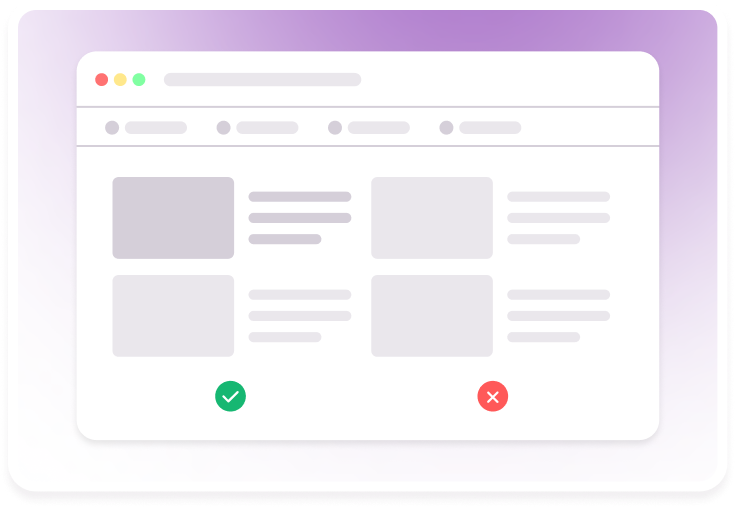
Jest Fails With Growing Dynamic Content
Why Do Teams Adopt Puppeteer For Visual Regression Testing?
Teams rarely adopt Puppeteer just for screenshot testing. They choose it because it fits naturally into modern JavaScript workflows and gives them deep browser control without heavy infrastructure. Here are the key reasons teams lean toward Puppeteer for visual validation testing:
- JavaScript-First Ecosystem: Puppeteer works seamlessly in Node.js environments. Teams already using Jest or other JS testing tools can extend their stack without introducing a new language or framework.
- Direct Chrome Control: Puppeteer talks to Chrome through the DevTools Protocol, which gives precise control over rendering behavior. This helps create stable and repeatable screenshots.
- Headless Execution for CI: Tests run without launching a visible browser window. That makes it efficient for CI pipelines and automated builds.
- Deterministic Rendering Setup: Viewport size, device emulation, user agents, and network conditions can all be configured. This reduces flakiness caused by inconsistent environments.
- Lightweight Initial Setup: Teams can start with a simple screenshot comparison library instead of adopting a large visual testing platform immediately.
- Full Page and Element-Level Screenshots: Puppeteer supports capturing entire pages or specific DOM elements. This flexibility helps teams target only critical UI components.
- Debugging-Friendly Workflow: Developers can run tests locally and inspect failures directly. Screenshot diffs make visual changes easier to understand.
- Flexible Integration Options: Puppeteer can integrate with snapshot tools, image diff libraries, or cloud-based visual testing software like Percy as needs grow.
- Control Over Test Timing: Explicit waits, network idle checks, and element-based conditions allow teams to capture screenshots only after the UI is fully rendered.
This combination of flexibility and developer control makes Puppeteer a practical starting point for visual regression testing.
Visual Regression Testing for a Specific DOM Element
Full-page screenshots work well for layout-level validation. Still, many real-world scenarios require something more targeted.
Teams often want to monitor a single UI component, such as a primary button, navigation menu, modal, or pricing card. In such cases, capturing the entire page adds noise and increases the chance of unrelated failures.
Puppeteer allows us to capture screenshots at the element level instead of the page level. The only change required is selecting the element first and then calling the screenshot method on it.
Here is the core difference:
const element = await page.$('#signupModalButton');
const image = await element.screenshot();
Instead of calling page.screenshot(), we locate the DOM element using a selector and capture only that component.
Complete Example: Element-Level Visual Test
Below is a sample test that validates a specific element:
const puppeteer = require('puppeteer');
const { toMatchImageSnapshot } = require('jest-image-snapshot');

expect.extend({ toMatchImageSnapshot });

describe('Element-level visual test', () => {
  let browser;
  let page;

  beforeAll(async () => {
    browser = await puppeteer.launch();
    page = await browser.newPage();
    await page.goto('https://www.browserstack.com');
  });

  afterAll(async () => {
    await browser.close();
  });

  it('should match the signup button snapshot', async () => {
    const element = await page.$('#signupModalButton');
    const image = await element.screenshot();

    expect(image).toMatchImageSnapshot({
      failureThreshold: 0.10,
      failureThresholdType: 'percent'
    });
  });
});
This approach keeps the test focused on one component. If a layout change elsewhere on the page occurs, it will not affect this test.
Execution remains the same as before. Run the test using Jest, and the first run creates the baseline image. Future runs compare the element screenshot against that stored reference.
Element-level visual testing is especially useful for design systems or reusable UI components where consistency matters across releases.
Starting With Percy For Puppeteer Visual Regression Testing
BrowserStack Percy is a cloud-based automated visual testing tool that integrates with popular automation frameworks beyond Puppeteer. Teams commonly use Percy alongside Selenium, WebdriverIO, Python-based test stacks, and TestCafe. This flexibility allows organizations to standardize visual testing across multiple tech stacks without rewriting their automation strategy.
Percy also brings AI-powered visual comparison to the workflow. Instead of relying only on raw pixel matching, it intelligently detects meaningful UI changes while filtering out noise such as anti-aliasing shifts or minor rendering inconsistencies. This reduces false positives and helps teams focus on real visual regressions.
Why Should You Choose Percy With Puppeteer?
| Feature | What It Does | Impact on Users |
|---|---|---|
| Visual AI Engine | Uses intelligent visual diffing instead of strict pixel comparison. It analyzes layout structure and rendering context to detect meaningful changes. Minor anti-aliasing or sub-pixel differences are filtered automatically. | Reduces false positives and review fatigue. Teams spend less time investigating noise and more time addressing real UI issues. |
| Cross-Browser Rendering | Captures and renders snapshots across multiple browsers in the cloud. Eliminates dependency on local browser installations. | Improves confidence in UI consistency without maintaining complex browser grids. Teams validate cross-browser behavior with minimal setup. |
| Responsive Snapshot Testing | Captures UI at different viewport sizes within a single build. Supports desktop, tablet, and mobile breakpoints. Maintains separate baselines per viewport. | Helps detect layout shifts specific to device sizes. Prevents mobile-only or responsive breakage from reaching production. |
| Automated Baseline Management | Stores and versions approved snapshots centrally. Tracks changes across builds and branches. Allows controlled updates through review workflows. | Simplifies collaboration and change tracking. Teams can approve intentional UI updates without losing historical reference. |
| Parallel Snapshot Processing | Processes multiple screenshots simultaneously in the cloud. Optimizes build performance even for large test suites. | Speeds up CI pipelines and reduces feedback time. Developers get visual results faster during pull requests. |
| Smart Diff Highlighting | Displays visual differences using overlays and side-by-side comparisons. Highlights only the changed areas clearly. | Accelerates debugging and visual reviews. Teams quickly understand what changed and whether it was intentional. |
| CI/CD Integration | Integrates directly with GitHub, GitLab, and other CI systems. Runs visual checks automatically on each pull request. | Embeds visual testing into everyday workflows. Teams catch visual bugs before merging code. |
| Snapshot Stabilization | Normalizes dynamic elements such as timestamps or animations before comparison. Reduces false positives from non-deterministic content. | Minimizes flaky tests and inconsistent results. Visual regression becomes more stable and predictable. |
Thinking about switching to visual automation?
Percy introduces best-in-class AI-powered visual automation to scale across multiple branches, picking UI regressions 3x faster.
Integrating Percy With Puppeteer and Jest
Once basic screenshot comparisons are working, the next step is to move visual checks into Percy. Instead of comparing images locally, Percy uploads snapshots to its cloud dashboard and handles rendering, diffing, and review workflows.
Below is a practical step-by-step setup using Puppeteer and Jest:
Step 1: Install Percy CLI and SDK
Install the required Percy packages:
npm install --save-dev @percy/cli @percy/puppeteerIf you are already using Puppeteer and Jest, no additional test runner changes are required.
Step 2: Set Your Percy Token
Percy requires an authentication token to connect your project to its dashboard. After creating a project in Percy, export the token as an environment variable:
export PERCY_TOKEN=your_project_tokenOn Windows (PowerShell):
setx PERCY_TOKEN "your_project_token"This allows Percy to associate uploaded snapshots with the correct project.
Step 3: Update Your Puppeteer Test
Now modify your existing Puppeteer test to send snapshots to Percy instead of performing local image comparisons.
Create or update visual.test.js:
const puppeteer = require('puppeteer');
const percySnapshot = require('@percy/puppeteer');

describe('Percy visual test', () => {
  let browser;
  let page;

  beforeAll(async () => {
    browser = await puppeteer.launch();
    page = await browser.newPage();
    await page.setViewport({ width: 1280, height: 800 });
  });

  afterAll(async () => {
    await browser.close();
  });

  it('captures homepage snapshot in Percy', async () => {
    await page.goto('https://example.com', {
      waitUntil: 'networkidle0'
    });

    await percySnapshot(page, 'Homepage Snapshot');
  });
});
Key differences from local snapshot testing:
- No jest-image-snapshot matcher is required.
- percySnapshot() uploads the rendered DOM to Percy.
- Rendering and comparison happen in Percy’s cloud environment.
Step 4: Run Tests Through Percy
To execute the test with Percy enabled, use:
npx percy exec -- npx jestThe percy exec command wraps your test execution and collects snapshots during the run.
After execution:
- Snapshots are uploaded to the Percy dashboard.
- Percy renders them across configured browsers and viewports.
- Visual diffs appear in the web interface for review.
50,000+ customers worldwide trust BrowserStack’s combined testing platform, including Percy visual testing.
Conclusion
Visual regression testing with Puppeteer gives teams a flexible starting point. You can begin with simple screenshot comparisons using Jest and gradually refine your tests to focus on specific DOM elements. This approach works well for smaller projects or teams that want full control over their test setup.
As applications grow, scaling visual reviews becomes just as important as capturing screenshots. That is where Percy adds value. By moving visual comparison, cross-browser rendering, and review workflows to the cloud, teams reduce noise, improve collaboration, and make visual testing part of everyday development instead of a separate activity.
Related Articles

Best Practices for Visual Testing in 2026
Unlock the best strategies to approach automated visual testing to your testing framework in 2026.

What is Visual Regression Testing [2026]
Visual regression testing detects unintended UI changes by comparing visual baselines. This article ...

Top Cross Browser Visual Testing Tools in 2026
Explore top cross browser visual testing tools for 2026, compare features, pricing, and learn how to...