
Screenshot Testing: Basics For 2026

Screenshot Testing: 2026 Comprehensive Guide
It’s kind of wild, but over 60% of UI bugs in production happen simply because no one looked at the app properly before release.
We still trust manual checks or quick glances, and under deadlines, visual bugs slip through all the time.
Screenshot testing changes that by treating visuals as something you can test, not just eyeballs. It automatically captures how the UI looks and compares it across builds, so even tiny layout shifts or missing elements don’t go unnoticed.
That’s exactly what this article digs into, how screenshot testing works, when it’s worth using, where it struggles, and how tools like Percy make it realistic for modern teams.
What is Screenshot Testing?
Screenshot testing is a visual testing technique where screenshots of an application’s UI are captured at specific states and compared against a baseline image from a previous run. Instead of checking code logic or DOM structure, it focuses purely on how the application looks to the end user.
Each time a test runs, the tool takes a fresh screenshot and performs a visual comparison against the approved baseline. Any differences, such as layout shifts, missing elements, font changes, or color mismatches, are flagged for review. This makes snapshot testing especially useful for catching regressions that functional tests often miss.
Because it validates the rendered UI, screenshot testing is commonly used alongside unit, integration, and end-to-end tests to add a visual safety layer to modern web applications.
Types of Screenshot Testing
Screenshot testing isn’t a single technique, it shows up in different forms depending on what you’re validating and how your application behaves. Each type solves a slightly different visual problem.
Visual Regression Testing
Visual regression testing compares screenshots taken before and after a code change to detect unintended visual differences. It focuses on identifying UI regressions such as layout shifts, missing elements, color changes, or broken styling that may not impact functionality but affect user experience.
It works by capturing baseline screenshots from a stable build and comparing them against screenshots from newer builds. Any pixel-level differences are highlighted for review, allowing testers to approve expected changes or flag regressions before deployment.
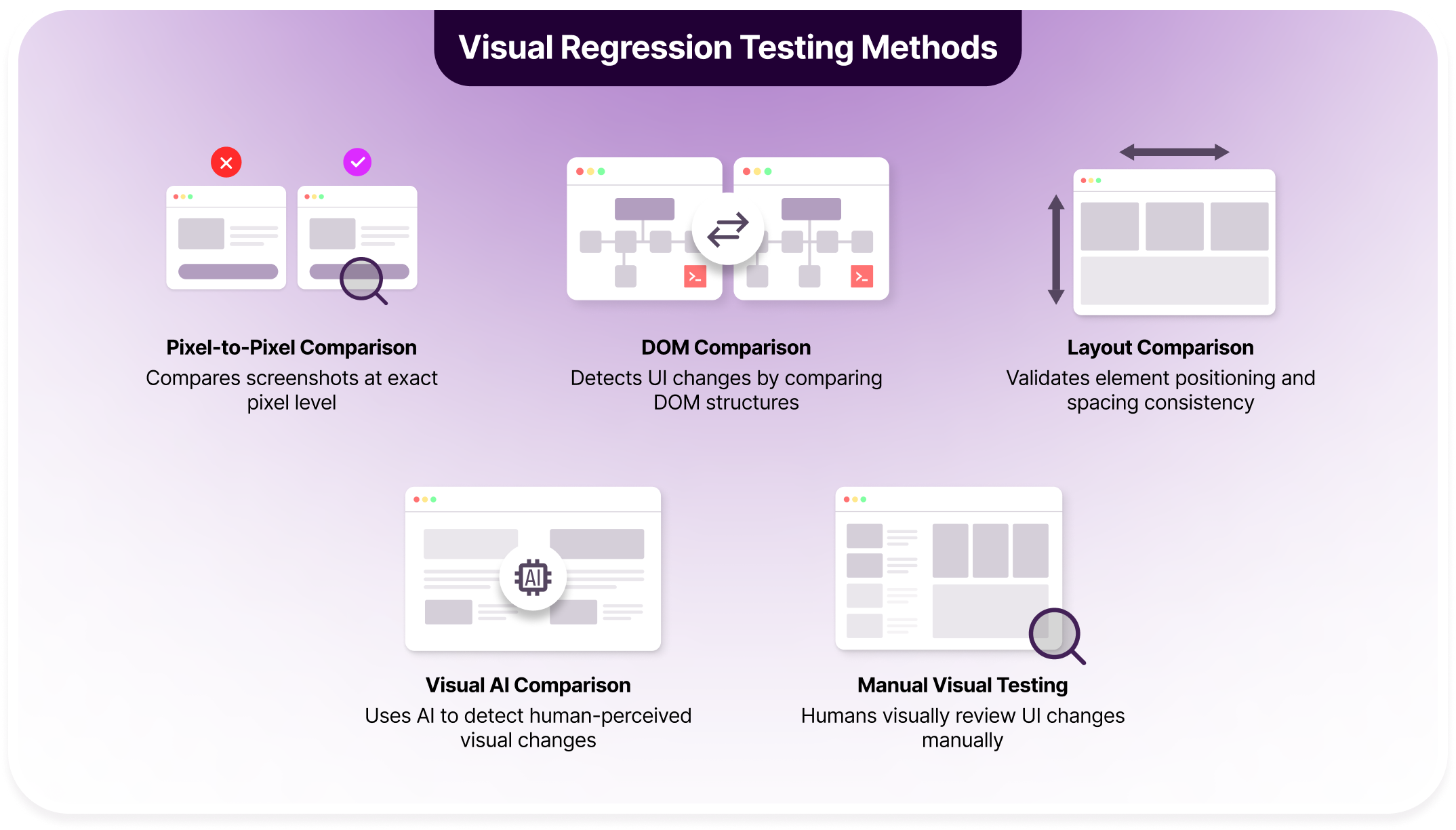
The image below showcases some of the most popular ways in which visual regression testing is being done.
Cross-Browser Visual Testing
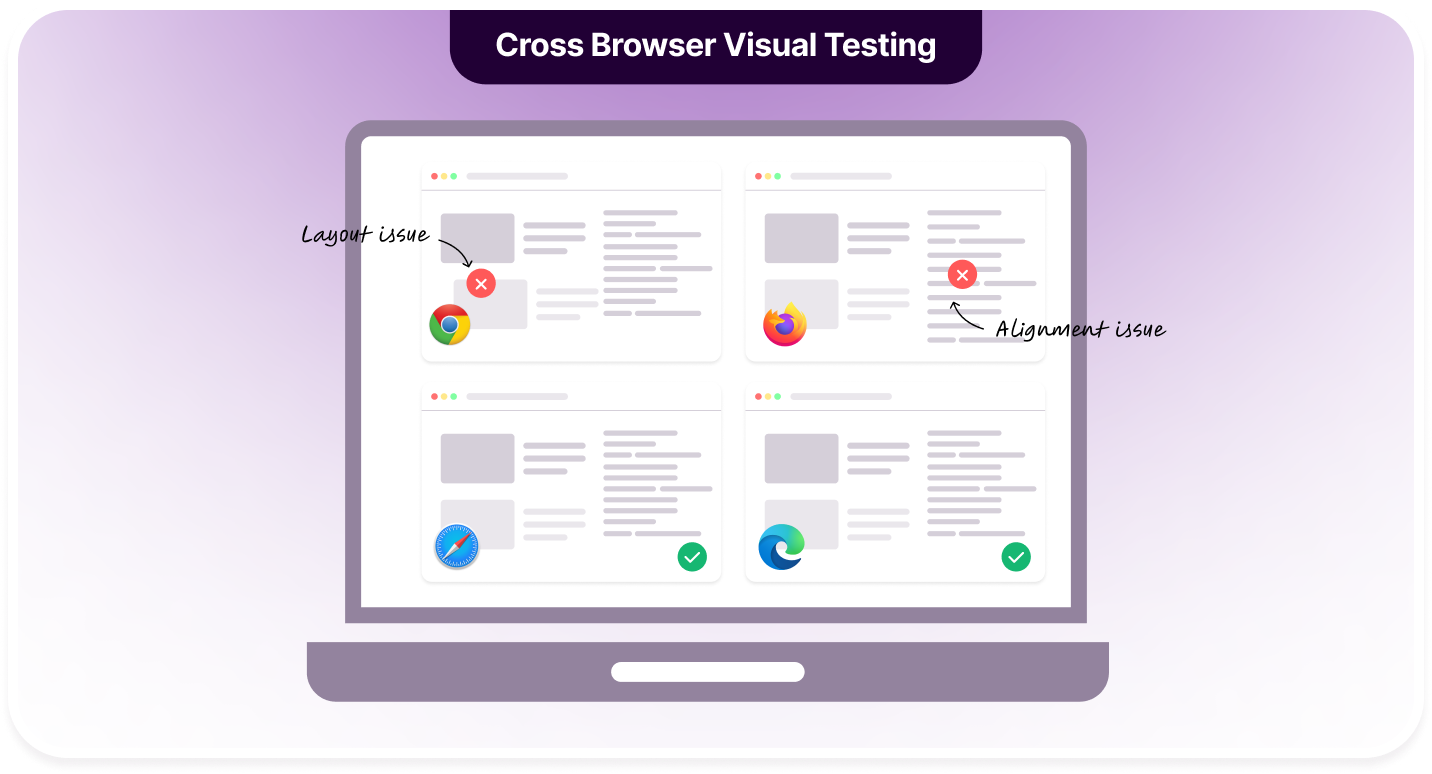
Cross-browser visual testing ensures the UI renders consistently across different browsers and operating systems. Since browsers interpret HTML and CSS differently, the same page can look slightly different depending on the environment.
This approach captures screenshots of the same page across browsers like Chrome, Firefox, Safari, and Edge. The screenshots are then compared against a reference to identify inconsistencies caused by rendering engines, font handling, or browser-specific CSS behavior.
Responsive Screenshot Testing
Responsive screenshot testing validates how a web page adapts to different screen sizes and device orientations. It’s especially important for mobile-first designs and applications that support multiple device types.
The process involves capturing screenshots at various viewport widths and resolutions. These images are compared against approved baselines to ensure elements resize, reposition, or stack correctly without breaking the layout on smaller screens.
Automated Visual Testing
Automated visual testing integrates screenshot capture into automated test workflows. Instead of relying on manual reviews, screenshots are taken automatically as part of CI or end-to-end test execution.
Tools like Cypress, Playwright, or Puppeteer trigger screenshots at defined checkpoints. These images are then compared against baselines, enabling teams to catch visual issues early and consistently without slowing down development cycles.
Manual Screenshot Testing
Manual screenshot testing relies on testers capturing screenshots and visually inspecting them for inconsistencies or UI defects. While less scalable, it provides flexibility during exploratory testing or early-stage development.
Testers compare screenshots against design specs or previous versions to identify issues. This approach is often used when automation is not feasible or when validating subjective visual elements that require human judgment.
Dynamic Content Screenshot Testing
Dynamic content screenshot testing addresses UI elements that change frequently, such as timestamps, ads, or personalized content. Without handling these elements, visual testing can produce excessive false positives.
It works by masking or ignoring dynamic regions during comparison. By stabilizing the baseline, teams can focus on meaningful visual changes while allowing dynamic elements to update without breaking screenshot tests.
How Screenshot Testing Actually Works
Screenshot testing works by analyzing visual differences between screenshots captured at different stages of development. Instead of validating logic or DOM structure, it focuses on how the UI visually changes as the application evolves.
- Capture Baseline Screenshots: The process begins by capturing baseline screenshots of the application in a known, stable state. These screenshots act as the visual reference point, typically taken after page load or once a specific user interaction is completed.
- Run Automated Tests: Automated tests are then executed using tools like Cypress, Playwright, or Selenium. These tests simulate real user actions such as navigation, form input, or button clicks to move the application through different states.
- Capture Test Screenshots: During test execution, screenshots are captured at predefined checkpoints. These checkpoints often include page transitions, modal openings, or state changes where visual regressions are most likely to occur.
- Compare Screenshots: The newly captured screenshots are compared against the baseline images using image comparison techniques. Differences such as layout shifts, color changes, or missing elements are detected and highlighted.
- Flagging Visual Differences: If visual discrepancies are found, the test is marked as failed or flagged for review. Tools typically provide visual diff views to make it easy to spot what changed and where.
- Review and Fix Issues: Developers and testers review the flagged differences to determine whether they represent unintended bugs or expected design updates. Unintended changes are fixed before the build progresses.
- Rebaseline When Needed: When visual changes are intentional, new baseline screenshots are approved and stored. These updated baselines become the reference for future comparisons.
If the current screenshot matches the baseline, the test passes. When it doesn’t, the mismatch forces a review, ensuring visual changes are never silently introduced.
Why Screenshot Testing Matters
Screenshot testing plays a critical role in maintaining visual stability as applications evolve. It adds a layer of protection that functional tests alone cannot provide, especially in modern, fast-moving development environments.
- Catches Visual Bugs Early: Identifies layout shifts, broken styles, missing elements, and rendering issues early in the development cycle, long before they reach production or impact real users.
- Prevents Unintended UI Regressions: Alerts teams when a new code change accidentally alters the appearance of existing screens, ensuring visual regressions are caught even when functionality remains intact.
- Ensures Cross-Browser Consistency: Verifies that the application looks and behaves consistently across browsers, operating systems, and devices, reducing surprises caused by browser-specific rendering differences.
- Reduces Manual Visual Checking: Automates repetitive visual inspections that testers typically perform manually, minimizing human error while freeing up time for exploratory and edge-case testing.
- Speeds Up Feedback Cycles: Provides fast, automated feedback during CI/CD runs, allowing teams to detect and address visual issues immediately after a change is introduced.
- Improves Overall UI Quality: Helps maintain a high standard of visual polish by catching subtle UI issues like spacing inconsistencies, font changes, or color mismatches that are easy to miss.
- Scales Well With Rapid Development: Supports agile and fast-paced teams by keeping visual validation aligned with frequent releases and continuous integration workflows.
- Simplifies Team Collaboration: Visual diffs make UI changes easy to understand, improving communication between developers, designers, and QA during reviews and approvals.
- Strengthens User Trust: Consistent, visually stable interfaces improve user confidence and perception of quality, reducing frustration caused by unexpected UI changes.
Screenshot testing is just the first step. Percy is what steers your UI growth forward.
Drawbacks and Limitations of Screenshot Testing
While screenshot testing is powerful, it isn’t without challenges. Understanding its limitations helps teams apply it correctly and avoid noisy or brittle test suites.
- High Sensitivity to Minor Changes: Screenshot tests can flag even the smallest visual differences, such as font rendering or sub-pixel shifts. Without proper thresholds or masking, this can lead to frequent false positives that slow down reviews.
- Maintenance Overhead: UI changes that are intentional still require baseline updates. If the UI evolves often, teams may spend significant time reviewing and approving new screenshots, especially in large applications.
- Challenges With Dynamic Content: Elements like timestamps, ads, animations, or personalized content can cause inconsistent screenshots. These areas must be masked or ignored, adding configuration complexity to the test setup.
- Limited Insight Into Root Causes: Screenshot diffs show what changed visually but not why it changed. Developers often need additional debugging to trace the issue back to CSS, layout logic, or component behavior.
- Slower Execution Compared to Unit Tests: Capturing and comparing screenshots is more resource-intensive than running unit or DOM-based tests, which can impact test execution time in large CI pipelines.
- Not a Replacement for Functional Testing: Screenshot testing validates appearance, not behavior. It must be used alongside functional and unit tests to ensure the application works correctly, not just looks right.
Optimal Scenarios for Using Screenshot Testing

Screenshot testing is most effective when visual stability is just as important as functional correctness. It works best in situations where UI changes are frequent and even small visual regressions can impact user experience.
- Updating Layouts or Styling: When modifying page layouts, CSS, or design elements, screenshot testing ensures that spacing, alignment, and visual hierarchy remain intact after changes are applied.
- Introducing UI-Impacting Features: New features often introduce new components or alter existing screens. Screenshot testing helps confirm that these additions don’t unintentionally affect surrounding UI elements.
- Cross-Browser and Cross-Device Validation: When supporting multiple browsers, operating systems, or devices, screenshot testing verifies consistent visual rendering across environments without relying on manual checks.
- Refactoring or Upgrading Codebases: Large refactors or framework upgrades can subtly impact layouts. Screenshot testing acts as a safety net, highlighting visual side effects even when functionality appears unchanged.
- Integrating Visual Checks Into CI/CD: Adding screenshot tests to CI/CD pipelines provides automated visual feedback on every build, ensuring UI regressions are caught early in fast-moving release cycles.
Popular Screenshot Testing Tools in 2026

With the growing complexity of modern web applications, screenshot testing tools have evolved to handle scale, speed, and visual noise. The tools listed in this section are selected based on their ability to integrate with modern test frameworks, support CI/CD workflows, handle dynamic content, and reduce false positives through intelligent visual comparison.
BrowserStack Percy
BrowserStack Percy is a visual testing software designed to make screenshot testing reliable and scalable for modern teams. Instead of relying on raw pixel-by-pixel comparisons, Percy uses intelligent visual diffing to highlight meaningful UI changes while filtering out insignificant variations.
Percy integrates seamlessly with popular testing frameworks like Cypress, Playwright, Selenium, and Jest. It captures screenshots during automated test runs and compares them against approved baselines across browsers, viewports, and devices, all without slowing down CI pipelines.
What sets Percy apart is its AI-powered visual analysis. By understanding layout structure and visual context, Percy significantly reduces false positives caused by rendering differences, animations, or minor browser inconsistencies.
The overall compounded impact of AI in Percy is transformation and drastic. You’re getting your money’s worth and at the end of the day, you’re net positive on the investment.

Key Features of BrowserStack Percy:
| Feature | Description | Impact |
|---|---|---|
| AI-Based Visual Diffing | Uses visual intelligence instead of raw pixel comparison to detect meaningful UI changes | Reduces false positives and noisy test failures |
| Responsive Testing | Supports multiple viewports and screen sizes in a single test run | Validates responsive layouts efficiently |
| Baseline Management | Simple workflow for approving and updating baselines | Keeps visual tests maintainable |
| Side-by-Side Visual Reviews | Provides visual diffs with overlays for quick inspection | Speeds up approval and debugging |
| Cross-Browser Screenshots | Captures screenshots across real browsers and environments | Ensures consistent UI across platforms |
| Dynamic Content Handling | Allows masking or ignoring dynamic UI regions | Prevents unstable baselines and flaky tests |
| CI/CD Integration | Integrates with modern CI tools and pipelines | Enables automated visual checks on every build |
| Framework Agnostic Setup | Works with Cypress, Selenium, Playwright, and more | Fits easily into existing test stacks |
| Scalable Infrastructure | Built to handle large test suites and teams | Supports enterprise-scale visual testing |
AI-Powered Capabilities in BrowserStack Percy:
BrowserStack Percy uses visual intelligence to make screenshot testing more reliable at scale. Its AI features focus on reducing noise, improving accuracy, and speeding up visual reviews.
- Intelligent Visual Diffing: Percy analyzes visual structure instead of relying purely on pixel-by-pixel comparison. This allows it to detect meaningful UI changes while ignoring insignificant rendering variations across browsers and environments.
- Automatic Noise Reduction: The AI filters out visual noise caused by anti-aliasing, font rendering differences, or minor layout shifts. This dramatically reduces false positives and prevents teams from reviewing unnecessary diffs.
- Smart Handling of Dynamic Content: Percy intelligently handles dynamic UI elements such as animations, timestamps, or frequently changing content. By stabilizing visual comparisons, it keeps baselines consistent without excessive manual masking.
- Faster Visual Reviews With Context: AI-powered diff highlighting focuses reviewer attention on areas that actually changed. This makes approvals quicker and helps teams understand visual impact without scanning entire screenshots.
Picture-Perfect UI On All Devices
Wraith
Wraith is an open-source screenshot comparison tool focused on visual regression testing. It captures screenshots across different environments and compares them to detect visual differences. Wraith is configuration-driven and commonly used in CI pipelines for layout change detection.
Key Features of Wraith:
- Config-Based Setup: Wraith relies on YAML configuration files to define pages, screen sizes, browsers, and comparison rules. This makes test behavior explicit and repeatable, especially in CI-driven workflows where consistency matters.
- Browser Support: It supports capturing screenshots across multiple browsers using engines like Headless Chrome or PhantomJS. This helps teams identify browser-specific rendering issues early.
- Automated Screenshot Diffing: Wraith automatically generates diff images that highlight visual differences between baseline and current screenshots, making regressions easier to spot during reviews.
- CI Compatibility: Designed to run headlessly, Wraith integrates well with CI systems, allowing visual checks to run automatically on every build or deployment.
Limitations of Wraith:
- Steep Learning Curve: Initial setup requires comfort with configuration files, command-line tools, and CI concepts, which can slow adoption for less experienced teams.
- Limited Modern Framework Support: Wraith does not offer native integrations with modern JavaScript testing frameworks like Cypress or Playwright, requiring custom workarounds.
- Basic Diffing Logic: Since comparisons are purely pixel-based, small rendering differences often trigger false positives, increasing review noise.
- Maintenance Overhead: Updating baselines is a manual process, which can become time-consuming as UI changes increase.
Testplane
Testplane (formerly Hermione) is a JavaScript-based visual regression testing tool designed for WebDriver-driven workflows. It’s commonly used in Node.js environments where Selenium or WebDriverIO is already part of the test stack.
Key Features of Testplane:
- WebDriver and Selenium Support: Testplane integrates directly with Selenium-based workflows, allowing teams to add visual checks without replacing existing functional tests.
- Flexible Screenshot Assertions: It allows precise control over when screenshots are taken, including full-page, component-level, or state-based captures during test execution.
- Parallel Test Execution: Testplane supports running tests in parallel, which helps reduce overall execution time in larger visual test suites.
- Extensible Plugin Architecture: Its plugin system allows teams to customize behavior, reporting, and integrations based on project needs.
Limitations of Testplane:
- Complex Configuration for Large Suites: Managing configurations across browsers, viewports, and test cases can become difficult as the test suite grows.
- No AI-Based Visual Intelligence: Testplane relies on raw image comparison, which increases the likelihood of false positives caused by rendering inconsistencies.
- Smaller Community and Ecosystem: Compared to newer tools, Testplane has fewer community resources, plugins, and examples available.
- Limited Review Experience: The lack of a modern visual review UI makes it harder to collaborate on approvals across QA, design, and development teams.
Visual Regression Tracker
Visual Regression Tracker is an open-source visual regression testing tool that provides a centralized dashboard for managing screenshot comparisons. It’s often chosen by teams that want to self-host their visual testing infrastructure.
Key Features of Visual Regression Tracker:
- Centralized Visual Review Dashboard: Offers a UI where teams can view, compare, approve, or reject visual changes across builds and environments.
- Framework-Agnostic API Integration: Supports integration with multiple testing tools through APIs, making it flexible across different tech stacks.
- Baseline Version History: Tracks visual changes over time, allowing teams to audit UI evolution and revisit previous baselines if needed.
- Self-Hosted Deployment Option: Gives teams full control over data, infrastructure, and security, which is important for regulated environments.
Limitations of Visual Regression Tracker:
- Infrastructure Maintenance Overhead: Teams must manage servers, storage, and updates, which increases operational complexity.
- No Intelligent Diffing: Relies on pixel-based comparison, resulting in noisy diffs for minor or irrelevant changes.
- Longer Initial Setup Time: Installation and configuration require more effort compared to SaaS-based visual testing tools.
- Scalability Constraints: Performance can degrade as the number of screenshots and builds increases.
Needle
Needle is a lightweight visual regression testing tool built on top of Selenium. It’s designed for teams that want to add basic screenshot comparisons to existing Selenium test suites.
Key Features of Needle:
- Native Selenium Integration: Works directly with Selenium WebDriver, making it easy to introduce visual checks without changing the test framework.
- Simple Screenshot Capture Workflow: Provides straightforward APIs for capturing screenshots at specific points during test execution.
- Baseline Image Storage: Stores reference images locally, allowing quick comparisons during test runs.
- Low Setup Overhead: Easy to get started for small projects or teams experimenting with visual testing.
Limitations of Needle:
- High False Positive Rate: Pixel-level comparisons are sensitive to minor rendering differences, leading to unstable test results.
- No Built-In Review Dashboard: Lacks a visual UI for reviewing diffs, forcing teams to inspect images manually.
- Manual Snapshot Management: Baseline updates require direct file changes, which doesn’t scale well.
- Limited Scalability: Not suitable for large applications with frequent UI changes or multiple environments.
30% UI Regressions Are Still Missed Without The Right Tool
Running Screenshot Tests With BrowserStack Percy
Running screenshot tests with BrowserStack Percy involves setting up Percy alongside your existing test framework and letting it capture and compare visual snapshots automatically during test runs. Percy fits cleanly into CI/CD workflows, so visual testing becomes part of your regular build process rather than a separate step.
Below is a step-by-step walkthrough using common Percy practices:
- Install Percy CLI
The Percy CLI acts as the bridge between your test runner and Percy’s visual testing platform. It wraps your test command and uploads screenshots for comparison.
npm install --save-dev @percy/cliOnce installed, Percy can intercept screenshots generated during test execution and send them to the Percy dashboard.
- Create New Project

After signing in to BrowserStack Percy, create a new project from the Percy dashboard. Each project represents a single application or test suite and maintains its own set of visual baselines.
During project creation, Percy generates a project-specific token, which is required to authenticate test runs from your local machine or CI environment.
- Set Environment Variables
Percy uses an environment variable to authenticate builds. Set the Percy token locally or in your CI system.
macOS / Linux
export PERCY_TOKEN=your_project_tokenWindows (PowerShell)
setx PERCY_TOKEN "your_project_token"This token ensures that snapshots are uploaded to the correct Percy project.
- Create Your First Snapshot
Percy snapshots are usually triggered from within your existing tests. For example, in a Cypress test:
cy.visit('/')

cy.percySnapshot('Home Page')
This command captures a screenshot of the current page state and sends it to Percy during test execution.
- Create Snapshot Configuration
Percy allows configuration to control how snapshots are captured. You can define viewports, enable responsive testing, or handle dynamic content.
Example .percy.yml configuration:
version: 2

snapshot:

  widths: [375, 768, 1280]

  min-height: 1024
This ensures snapshots are taken across multiple screen sizes, helping validate responsive layouts.
- Run Your First Build

To execute tests with Percy enabled, wrap your test command using the Percy CLI:
npx percy exec -- cypress runPercy starts a build, captures snapshots during the test run, and uploads them for comparison against existing baselines.
- Introduce Visual Changes
Make a deliberate visual change in your application, such as modifying a button color, spacing, or layout. Then re-run the Percy build using the same command.
Percy will detect the visual difference and flag it as a change in the dashboard, highlighting exactly what was altered.
- Review and Approve Changes
In the Percy dashboard, visual diffs are displayed side by side with highlighted changes. Review each snapshot and decide whether the change is expected.
- Approve the snapshot if the change is intentional, updating the baseline.
- Reject it if the change is a regression, prompting a fix before merging.
This review step ensures visual changes are never introduced silently.
Best Practices For Effective Screenshot Testing
Screenshot testing is most effective when it’s focused, stable, and easy to maintain. These best practices help reduce noise, improve reliability, and ensure visual tests add value instead of slowing teams down.
- Limit Screenshot Coverage to Critical UI Areas: Focus screenshot tests on high-impact UI components such as headers, navigation menus, checkout flows, or core dashboards. Avoid capturing every page or state, as excessive screenshots increase maintenance effort without improving coverage.
- Run Tests in a Controlled Server Environment: Execute screenshot tests in a consistent server or CI environment rather than local machines. This eliminates visual inconsistencies caused by differences in operating systems, browser versions, fonts, or display settings.
- Use Fixed Viewports and Stable Configurations: Maintain consistent viewport sizes, browser versions, and rendering settings across all test runs. Standardized environments reduce visual discrepancies that are unrelated to actual UI changes.
- Maintain and Review Baselines Carefully: Always compare new screenshots against an approved baseline. Update baselines only after reviewing changes to confirm they are intentional, ensuring regressions are not accidentally accepted.
- Exclude Dynamic or Frequently Changing Elements: Mask or ignore elements such as timestamps, advertisements, animations, or user-specific data. This keeps screenshots stable and prevents false positives triggered by expected content changes.
- Manage Visual Noise and False Positives: Configure tolerance thresholds and ignore non-critical differences like minor rendering variations. Reducing visual noise helps teams focus reviews on meaningful UI changes.
Conclusion
Screenshot testing fills a critical gap left by functional and DOM-based tests by validating what users actually see. When applied thoughtfully, it helps teams catch visual regressions early, maintain UI consistency across browsers and devices, and reduce reliance on fragile manual checks.
Modern tools like BrowserStack Percy make screenshot testing practical at scale by combining automation with intelligent visual diffing. By following best practices and integrating screenshot tests into CI/CD pipelines, teams can ship faster with confidence that visual quality isn’t being compromised.
FAQs
Screenshot testing focuses on capturing and comparing UI images, while visual regression testing is a broader practice that uses screenshots to detect unintended visual changes across builds, browsers, or environments.
Screenshot tests should run after functional tests pass, typically on pull requests or nightly builds, so visual regressions are caught before code is merged or released.
Yes, when tools support masking, ignoring regions, or intelligent diffing. This prevents elements like ads or timestamps from causing false positives.
No. Screenshot testing reduces repetitive manual checks, but exploratory and usability testing still require human judgment for subjective visual and UX decisions.
Related Articles
What is Visual GUI Testing
A practical visual GUI testing guide for 2026 with tools best practices and real world use cases.

End to End Snapshot Testing Using Cypress: A 2026 Guide
End-to-end snapshot testing with Cypress is simple. Learn how to use Percy for visual snapshots, red...

Top 6 Automated Visual Testing Tools for Selenium in 2026
Discover top automated visual testing tools for selenium integration. Choose among 2026’s top tool...