
Run Visual Tests Using Protractor
How to Perform Visual Regression Testing Using Protractor
Nearly 60% of UI defects are styling or layout issues that functional tests fail to detect, leading to broken user experiences in production. A page may technically work while still appearing misaligned, clipped, or visually inconsistent.
Protractor is an end-to-end testing framework built for Angular and web applications, enabling browser automation using Selenium WebDriver. It allows teams to write tests in JavaScript and integrate them into CI pipelines for automated validation.
This article explains how to implement visual regression testing in Protractor.
Using protractor-image-comparison for Visual Tests
protractor-image-comparison is a plugin that extends Protractor with visual regression testing capabilities. It enables screenshot capture and pixel-level visual comparison directly within your existing Protractor test suite. Instead of only verifying functional behavior, you can now detect unintended visual changes between test runs.
The plugin works by generating baseline images during the initial run. On subsequent runs, it captures new screenshots and compares them against those baselines. If the visual difference exceeds a defined threshold, the test fails and produces a diff image that highlights the changes.
Prerequisites & Setup
Before implementing visual comparison in Protractor, ensure the following:
1. Basic Project Setup
- A working Protractor project
- Node.js and npm installed
- Existing E2E test configuration (protractor.conf.js)
2. Install Required Packages
Install the image comparison plugin:
npm install protractor-image-comparison --save-devThis package adds image diff capabilities on top of your WebDriver-based flows.
3. Update Protractor Configuration
Modify your protractor.conf.js file:
const { join } = require('path');

exports.config = {
  framework: 'jasmine',
  onPrepare: function () {
    browser.imageComparisonName = 'visualTests';
  },
  imageComparison: {
    baselineFolder: join(process.cwd(), './baseline/'),
    screenshotPath: join(process.cwd(), './.tmp/'),
    autoSaveBaseline: true,
    clearRuntimeFolder: true,
  },
};
Key configuration fields:
- baselineFolder: Stores reference images.
- screenshotPath: Temporary location for runtime screenshots.
- autoSaveBaseline: Automatically creates baseline images if none exist.
Step-by-Step Instructions for Image Comparison
Once configured, you can add visual checks to your Protractor test.
1. Create a Basic Visual Test
describe('Homepage visual test', () => {

  it('should match the homepage screenshot', async () => {
    await browser.get('https://example.com');
    const result = await browser.checkFullPageScreen('homepage-full');
    expect(result).toBeLessThan(1);
  });
});
2. What Happens During Execution?
- The test captures a full-page screenshot.
- It compares the image with the stored baseline.
- A mismatch percentage is returned.
- The assertion determines whether the UI passes or fails.
You can also:
- Capture viewport screenshots
- Compare specific elements
- Adjust mismatch tolerance
Viewing a Failed Test Result
When a visual test fails:
- A diff image is generated.
- The diff highlights changed pixels.
- You can inspect the baseline image, current image, and the difference overlay.
These artifacts are typically stored in:
- The runtime screenshot folder
- A dedicated diff directory (if configured)
Do More With Protractor
Element-Level Visual Comparison in Protractor
Full-page comparison is useful, but sometimes you only need to verify a specific UI component.
How to Capture and Compare Specific UI Elements
You can target individual elements using Protractor locators:
it('should compare login button UI', async () => {
  const loginButton = element(by.css('.login-btn'));
  const result = await browser.checkElement(loginButton, 'login-button');
  expect(result).toBeLessThan(1);
});
Why Use Element-Level Comparison?
- Reduces false positives from unrelated layout changes
- Focuses on high-risk components
- Speeds up debugging
- Improves test stability
Best Practices:
- Wait for dynamic content to stabilize before capturing
- Avoid animations during screenshot capture
- Use consistent viewport sizes
- Mock unstable data where possible
Visual impressions form in 0.5 seconds, use Percy to perfect your website UI.
Visual Regression with Percy in Protractor
Visual validation testing with Percy combines your Protractor end-to-end tests with a powerful, cloud-driven visual testing software. Instead of storing and comparing images locally, Percy captures visual snapshots during test runs and uploads them to its dashboard where you can review UI changes across builds, track visual diffs, and collaborate on UI feedback.
Percy is part of the BrowserStack ecosystem and uses intelligent rendering and visual diff testing to highlight only meaningful changes, reducing noise from irrelevant alterations like animations or minor DOM differences.
Below we’ll walk through how to integrate Percy into your Protractor setup and run visual tests that show comparisons in the Percy dashboard.
Installing Percy for Protractor
Before you write Percy-enabled tests, you need to install the Percy CLI and the Protractor SDK.
Step 1: Install Dependencies
In your project, install the Percy CLI and Protractor integration package:
npm install --save-dev @percy/cli @percy/protractorThe CLI handles authentication, environment detection, and uploading snapshots, while @percy/protractor provides the percySnapshot() function to call from tests.
Writing a Percy-Enabled Visual Test
Once installed, you can start taking visual snapshots directly from your test cases.
1. Import Percy in Your Test File
In your Protractor spec:
const percySnapshot = require('@percy/protractor');2. Add Snapshots in Your Flow
Within your test cases, call percySnapshot() at the points where you want Percy to capture a visual state:
describe('My App visual tests', () => {
  it('should take a homepage snapshot', async () => {
    await browser.get('https://example.com');

    // Percy takes a snapshot and sends it to the Percy dashboard
    await percySnapshot('Homepage Default View');

    // Interact with the UI and take another snapshot
    await element(by.css('.login-btn')).click();
    await percySnapshot('After Login Button Click');
  });
});
Each call tells Percy to capture the current browser DOM and upload a visual “snapshot” labeled with the string you provide; this label appears in the Percy UI for easy identification.
Setting Your Percy Token
To connect your test suite to your Percy project, you must set a Percy project token as an environment variable. Percy uses this token to authenticate and upload snapshots to the correct project in its dashboard.
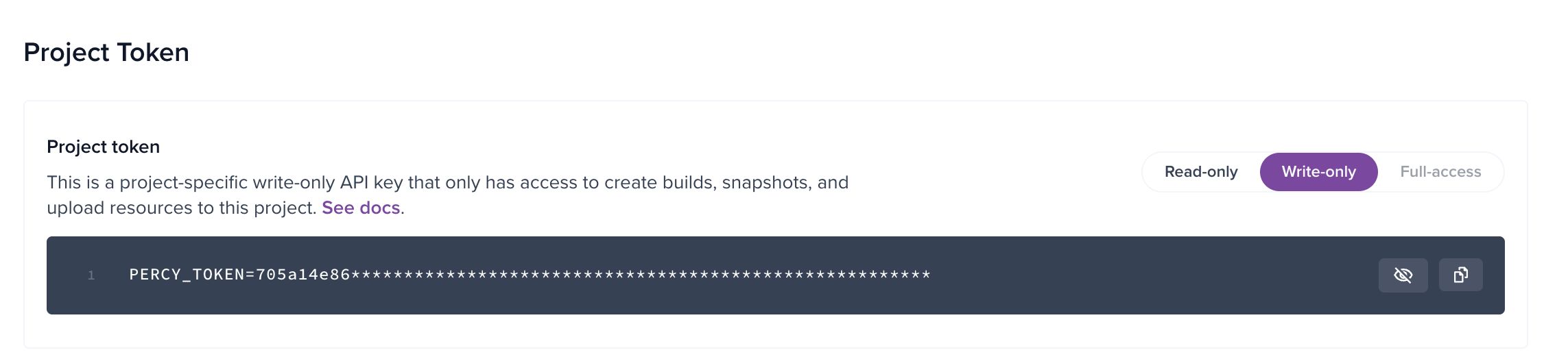
- Create a project in Percy (select Web as the type).
- Copy the generated token.
- Export the token in your shell before running tests:
export PERCY_TOKEN=your_percy_project_tokenOn Windows PowerShell:
$Env:PERCY_TOKEN="your_percy_project_token"Or in CMD:
set PERCY_TOKEN=your_percy_project_tokenThis token must be present in the environment where Percy runs so it can upload snapshots successfully.
Let Percy catch UI regressions reviewing hundreds of screenshots together.
Running Visual Tests with Percy
To actually start Percy and upload snapshots, you run your Protractor tests wrapped inside the Percy CLI’s exec command. This starts a Percy agent that listens for snapshots and creates a visual build in your dashboard:
percy exec -- protractor conf.jsHere’s what happens:
- Percy starts a local agent.
- Your Protractor tests execute normally.
- Snapshots taken via percySnapshot() are sent to Percy.
- Once tests finish, Percy finalizes the build and uploads it to the dashboard.
After the run completes, you’ll see output in your terminal confirming that Percy has started, taken snapshots, and finalized a build with a link to view results.
What Happens in the Percy Dashboard

When you view a build in Percy’s dashboard:
- Snapshots from the current build are compared to the baseline build (typically the last approved build).
- Percy highlights visual diffs where pixels differ between snapshots.
- You can view comparisons side-by-side or with diffs overlayed.
- Teams can approve or reject changes, marking a new snapshot as the baseline if changes are intentional.
Percy also supports responsive testing by rendering snapshots at different widths so you can verify UI consistency across screen sizes if configured.
Why Use Percy with Protractor?
There are several advantages to integrating Percy into your Protractor visual tests:
- Automated visual review workflows: Diffs are stored in a centralized dashboard where QA and developers can collaborate.
- Cross-environment visual history: Percy tracks visual changes over time, helping teams catch regressions before releases.
- Intelligent diffing: Percy’s rendering engine stabilizes snapshots and minimizes noise from dynamic content.
- CI/CD integration: You can run Percy in continuous integration pipelines to enforce visual quality gates.
Using Percy with Protractor bridges the gap between functional E2E automation and robust visual regression coverage, ensuring that UI bugs are found early and highlighted clearly for review.
Want to Scale Your Testing Effortlessly?
Unlock AI-powered visual efficiency using Percy, test parallely across 50,000+ devices and browsers.
Conclusion
Visual regression testing in Protractor can be approached in two powerful ways: local image comparison using protractor-image-comparison, or cloud-based visual review using Percy.
While local comparison works well for straightforward baseline checks within a controlled environment, Percy elevates visual testing by introducing intelligent diffing, centralized review workflows, responsive rendering, and CI/CD integration. Instead of manually inspecting screenshots or managing baseline folders, teams can collaborate on visual changes directly from Percy’s dashboard.
For teams maintaining UI-heavy applications, combining Protractor’s E2E automation with Percy’s visual capabilities ensures that layout shifts, styling regressions, and unexpected UI changes are caught early—before they reach production. This creates a stronger safety net for frontend releases without slowing down development velocity.
Related Articles

15 Best Open Source Visual Regression Testing Tools for 2026
Learn what visual regression testing is, explore 15 open source tools for 2026, and see how teams sc...

What is Visual Regression Testing [2026]
Visual regression testing detects unintended UI changes by comparing visual baselines. This article ...
Visual Testing With Selenium: All You Need to Know in 2026
Learn how to perform visual testing with Selenium, manage baselines, and scale visual regression usi...